Digital footprints are expanding exponentially. From 4K video libraries and RAW photography archives to critical business documents, the reliance on third-party cloud storage is becoming increasingly costly and restrictive. Enter the Network Attached Storage (NAS) device. Once the domain of enterprise server rooms, the NAS has firmly planted itself in the modern smart home and small office. It acts as the central nervous system for data management.
This guide provides an all-encompassing look at what a NAS is, why it is a pivotal investment for data sovereignty, and how to navigate the complex landscape of hardware and software options available in 2026.
What is a NAS?
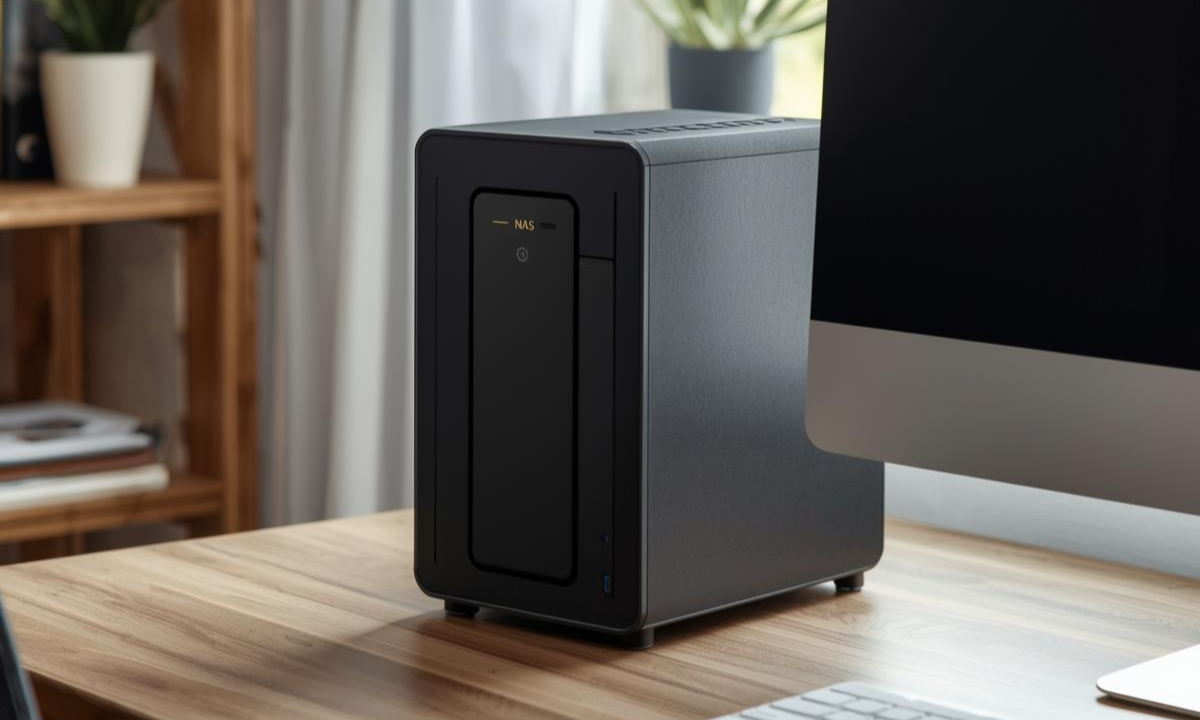
At its simplest, a Network Attached Storage (NAS) device is a specialized computer dedicated to storing and serving files over a local area network (LAN). Unlike a standard external hard drive that plugs directly into a PC via USB, a NAS connects to a router or switch via Ethernet. This distinction allows multiple users and devices to access the same data simultaneously. Computers, smartphones, tablets, and smart TVs can all retrieve files from this central source 24/7.
While they can be as compact as a single-drive enclosure or as massive as a 24-bay server rack, all NAS systems share a common goal. They provide a centralized, redundant, and always-on location for data.
Why Invest in a NAS?
The transition from local hard drives or public cloud services, such as Google Drive or Dropbox, to a dedicated NAS is usually driven by specific needs regarding privacy, speed, and control.
1. Data Sovereignty and Privacy
Public clouds scan, compress, and analyze uploaded data. A private NAS ensures that files remain locally owned. There are no subscription fees for storage capacity. Furthermore, no terms of service changes can lock a user out of their own family photos or business contracts.
2. Robust Backups and Redundancy
A NAS is the cornerstone of a solid backup strategy. Most systems utilize RAID (Redundant Array of Independent Disks). This technology combines multiple hard drives into a single logical unit. If one hard drive fails, the data remains accessible from the remaining drives, which prevents catastrophic data loss.
3. Media Streaming and Entertainment
For media enthusiasts, a NAS is indispensable. Software like Plex, Jellyfin, or Emby can run directly on the NAS. These applications transcode high-bitrate movies and TV shows to stream them to any screen in the house or across the globe. It effectively creates a personal Netflix.
4. Virtualization and Containers
Modern NAS appliances are surprisingly powerful servers. They can run Docker containers, which are lightweight applications, or full Virtual Machines (VMs). This capability allows a NAS to function as a home automation hub using Home Assistant, a network-wide ad blocker using Pi-hole, or a private password manager using Vaultwarden.
Pros and Cons of Running a NAS
Before diving into hardware, it is vital to weigh the benefits against the operational friction.
| Pros | Cons |
|---|---|
| Centralization: All data in one place, accessible everywhere. | Upfront Cost: Good enclosures and drives can cost $500 to $2,000 or more. |
| Speed: Local transfers via 1GbE or 10GbE are significantly faster than internet cloud uploads. | Maintenance: Requires updates, drive replacements, and network configuration. |
| Redundancy: Protection against drive failure via RAID or ZFS. | Complexity: Steep learning curve for permissions, Docker, and remote access. |
| Versatility: Can run hundreds of self-hosted apps. | Power & Noise: Always-on devices consume electricity and generate heat or fan noise. |
Hardware: Turnkey vs. DIY
The first major fork in the road for a prospective NAS owner is the hardware choice.
Turnkey Solutions (Synology / QNAP)
These are pre-built appliances. You buy the box, insert the drives, and turn it on.
- Synology: The market leader for ease of use. Their operating system, DiskStation Manager (DSM), is polished, reliable, and user-friendly. However, the hardware is often underpowered for the price. They frequently use older CPUs and non-standard parts.
- QNAP: Generally offers better hardware specs, such as faster CPUs and 2.5GbE ports, for the same price as Synology. However, they have historically suffered from more security vulnerabilities and a less refined software interface.
DIY Custom Builds
Building a NAS from standard PC components offers the best price-to-performance ratio. A custom build allows for the use of enterprise-grade features. This includes ECC (Error Correction Code) RAM to prevent data corruption in memory and HBA (Host Bus Adapter) cards for connecting many drives.
- The Chassis: Cases like the Jonsbo N-series or Fractal Design Node 804 are popular for holding multiple hard drives.
- The Platform: Standard consumer Intel or AMD CPUs work well. Alternatively, second-hand enterprise server gear like Xeon or EPYC processors can be used depending on power requirements.
The Software Ecosystem: A Deep Dive
If choosing the DIY route, the operating system selected will dictate the NAS experience. In 2026, the landscape is dominated by three major players. Each serves a different philosophy.
1. TrueNAS Scale (formerly Core)
TrueNAS is the heavyweight champion of data integrity, developed by iXsystems. As of 2026, the focus has shifted entirely to TrueNAS Scale. This version is Linux-based, while the legacy FreeBSD-based “Core” has effectively moved to maintenance-only status. The free version is now often referred to as TrueNAS Community Edition.
- The Filesystem (ZFS): TrueNAS utilizes the ZFS filesystem. ZFS is enterprise-grade and offers self-healing capabilities, snapshots, and copy-on-write protection. Snapshots are instant backups of the file system state. ZFS also detects silent data corruption, known as bit rot, and fixes it automatically.
- Pros: Unmatched data protection, enterprise features, free and open-source.
- Cons: Strict hardware requirements. ZFS requires rigid drive expansion. You generally cannot add a single drive to an existing array easily and must add a whole new group of drives, known as a VDEV. It also prefers ECC RAM.
2. Unraid
Unraid takes a unique approach. Unlike traditional RAID, Unraid allows for an array of mismatched drives. You can mix different brands, speeds, and capacities.
- The Parity System: Data is not striped across all drives. Instead, files live on individual disks, and one or two drives are dedicated as “Parity.” If a data drive fails, the parity drive reconstructs it. If two drives fail and you only have single parity, you only lose the data on the failed drives rather than the whole array.
- Pricing Model: As of 2024, Unraid shifted to a hybrid pricing model with Starter, Unleashed, and Lifetime tiers. While legacy keys are grandfathered, new users must decide between a subscription for updates or a higher one-time fee.
- Pros: Extremely flexible expansion allows adding one drive at a time. It features very user-friendly Docker management and power efficiency since drives spin down when not in use.
- Cons: Write speeds are slower than ZFS or traditional RAID due to real-time parity calculation. It is not free software.
3. OpenMediaVault (OMV)
OpenMediaVault is a free, open-source NAS solution based on Debian Linux. It is incredibly lightweight and can run on anything from a Raspberry Pi to a full-sized server.
- Architecture: OMV is modular. It provides the basics like SMB, NFS, and SSH out of the box. Everything else is added via plugins.
- Pros: Completely free, low system resource usage, runs on standard Debian, supports ZFS via plugin, and supports standard Linux file systems like EXT4 and BTRFS.
- Cons: Requires more Linux knowledge to manage effectively. The interface is functional but utilitarian compared to Synology or Unraid.
NAS Management: Tips, Tricks, and Best Practices
Owning a NAS is an ongoing responsibility. To ensure longevity and security, follow these essential management guidelines.
The 3-2-1 Backup Rule
A NAS is not a backup if it is the only place the data exists. RAID provides redundancy and uptime, but it is not backup and recovery. Experts universally recommend the 3-2-1 rule.
- 3 copies of your data.
- 2 different media types, such as your PC and your NAS.
- 1 copy offsite. This could be a cloud backup service like Backblaze B2 or a second NAS at a friend’s house.
Understanding RAID Levels
Choosing the right RAID level is critical for balancing capacity and safety.
- RAID 0: Striping. Fast, but zero redundancy. If one drive fails, all data is lost. Avoid this for critical data.
- RAID 1: Mirroring. Two drives containing the exact same data. This offers 50% storage efficiency but excellent redundancy.
- RAID 5 / RAIDZ1: Striping with parity. Requires at least 3 drives. Can survive 1 drive failure. This provides a good balance of speed and storage space.
- RAID 6 / RAIDZ2: Striping with double parity. Requires at least 4 drives. Can survive 2 simultaneous drive failures. This is highly recommended for arrays with large drives over 14TB due to the long rebuild times.
Network Security
Exposing a NAS directly to the internet is a recipe for disaster. Ransomware groups actively scan for open NAS login ports.
- Disable UPnP: Ensure Universal Plug and Play is turned off on the router to prevent the NAS from automatically opening ports.
- Use a VPN: To access files remotely, set up a VPN server. Options like WireGuard or Tailscale create a secure, encrypted tunnel into the home network without exposing the NAS management interface.
- Reverse Proxy: For hosting services accessible via a domain name, use a Reverse Proxy like Nginx Proxy Manager with SSL certificates.
Power Protection: The UPS
A Uninterruptible Power Supply (UPS) is mandatory for NAS setups. Sudden power loss can corrupt filesystems, especially ZFS and BTRFS which rely on RAM for caching. A UPS provides battery backup to keep the NAS running during a flicker. More importantly, it can initiate a graceful shutdown before the battery runs out.
Tip: Drive “Shucking”
“Shucking” is a popular money-saving trick. It involves buying high-capacity external USB hard drives and removing the drive from the plastic shell to use inside the NAS. While this can save significant money, be aware that it may void the warranty.
Tip: Hard Links and Atomic Moves
When using software like Sonarr or Radarr for media management, configuring the software to use Hard Links is essential. This allows a file to exist in two folders simultaneously without taking up double the storage space, keeping the file system efficient.
Conclusion
Investing in a Home or Office NAS is a significant step toward digital independence. Whether opting for the plug-and-play simplicity of a Synology or the rugged flexibility of a custom TrueNAS Scale server, the benefits of centralized, secure, and sovereign data storage are undeniable. By understanding the hardware requirements, selecting the software that aligns with your technical comfort level, and adhering to strict backup and security protocols, a NAS becomes not just a hard drive but the most valuable appliance in your technological ecosystem.
Would you like me to help you design a specific parts list for a DIY NAS build based on your budget?