
On October 28, 2026, the WordPress security team deployed an emergency maintenance release: WordPress 7.1.4. While the release notes listed fixes for 22 individual bugs, security researchers and threat intelligence desks immediately focused on one critical item: an unauthenticated Remote Code Execution (RCE) vulnerability tracked as CVE-2026-119977 with a CVSS score of 8.1.
The vulnerability affects every WordPress Core release from version 4.7 up through 7.1.3.
Within hours of the advisory going live, threat actors launched automated scanning campaigns across the public web. Threat monitoring feeds from Wordfence and Patchstack recorded more than 62,000 automated exploitation probes in the first 24 hours alone. Attackers specifically targeted transient staging folders created during the core upgrade routine.
For both solo site owners managing a personal blog and DevOps engineers responsible for multi-tenant hosting clusters, understanding this flaw matters directly. This guide breaks down the underlying race condition mechanics, why background auto-updates might have missed your installation, and the exact steps required to inspect, clean, and harden your servers today.

Technical Profile: CVE-2026-119977
| Metric | Specification |
|---|---|
| Vulnerability Identifier | CVE-2026-119977 |
| Vulnerability Class | Race Condition (CWE-362) leading to Unauthenticated RCE |
| CVSS v3.1 Base Score | 8.1 (High) (CVSS:3.1/AV:N/AC:H/PR:N/UI:N/S:U/C:H/I:H/A:H) |
| Discovered & Reported By | Umut Bayram |
| Affected Software | WordPress Core 4.7 through 7.1.3 |
| Patched Release | WordPress 7.1.4 (and backported branch security releases) |
| Vulnerable Attack Surface | Temporary extraction staging directory (wp-content/upgrade/) |
| Active Threat Telemetry | High (tens of thousands of automated probes targeting setup-config.php) |
Anatomy of the Vulnerability: The Upgrade-Window Race Condition
To understand how an unauthenticated remote attacker can hijack a WordPress site during an update, you have to look at how WordPress has handled core updates since 2016.
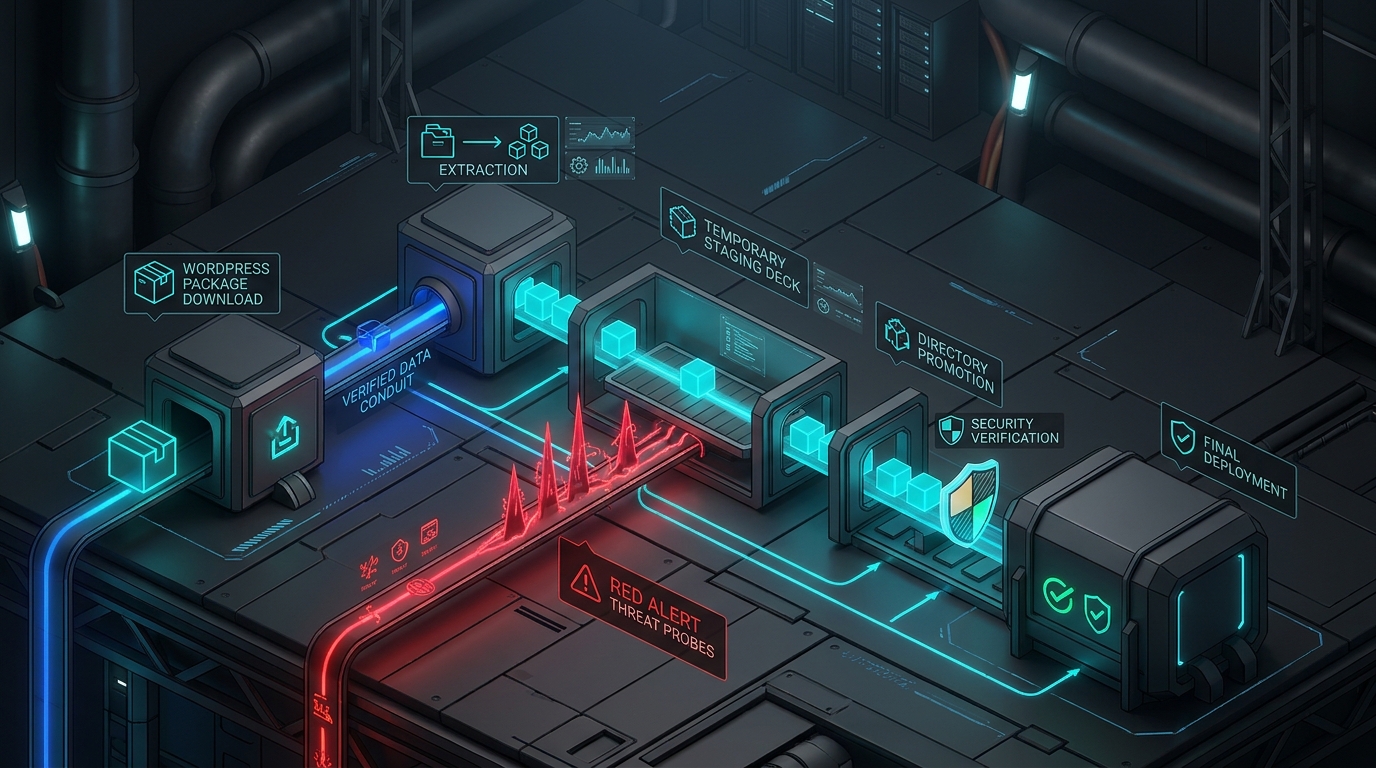
When WordPress initiates a full-package upgrade (either through the administrative dashboard at /wp-admin/update-core.php or via background auto-updates), it follows a predictable four-stage lifecycle:
- Package Download: WordPress downloads the latest release ZIP archive from
downloads.wordpress.orginto the local file system. - Directory Unpacking: The core archive is unpacked into a temporary staging subfolder located at
wp-content/upgrade/core/(or similar predictable folder names). - File Promotion: WordPress copies the unpacked files over the existing core installation (
wp-admin/,wp-includes/, and root files). - Cleanup: The temporary staging folder inside
wp-content/upgrade/is removed.
Where the Flaw Exists
The security boundary fails at Stage 2 and Stage 3:
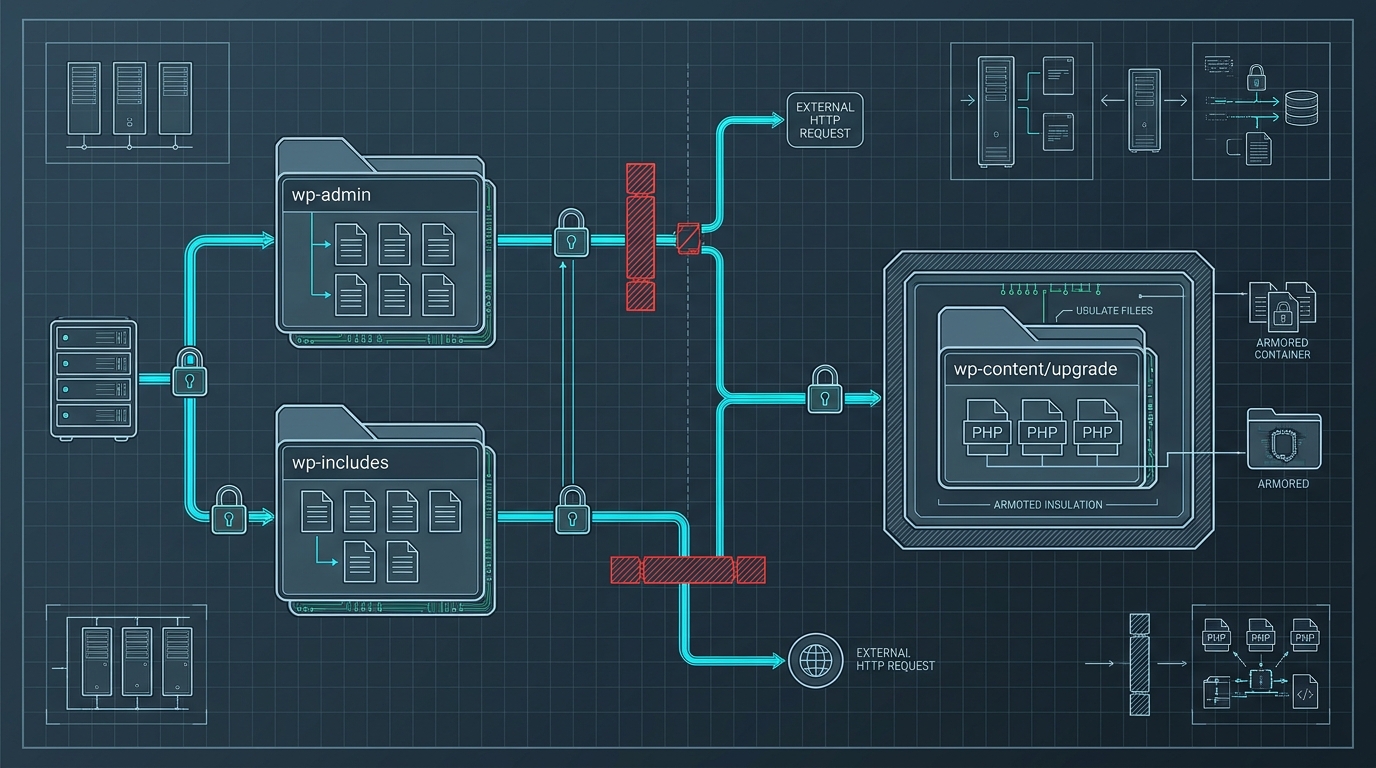
First, the wp-content/upgrade/ folder resides inside the publicly accessible document root. On millions of standard Apache, Nginx, and LiteSpeed hosting configurations, web servers happily serve static assets and execute .php scripts located anywhere inside wp-content/.
Second, the temporary subfolder name chosen during extraction was completely predictable.
Third, the WordPress core distribution archive contains the installer script: wp-admin/setup-config.php. In a normal production deployment, WordPress prevents direct access to setup scripts because wp-config.php already exists at the site root. However, inside the temporary staging directory, the freshly extracted files lack a neighboring wp-config.php file.
During the upgrade window, an attacker polling the predictable staging path can fire concurrent HTTP requests directly at the unpacked setup script:
GET /wp-content/upgrade/core/wordpress/wp-admin/setup-config.php?step=1 HTTP/1.1
Host: target-website.com
User-Agent: Mozilla/5.0
If the attacker’s request hits the server during the few seconds between extraction and directory cleanup, the setup script executes in an unconfigured state. An adversary can then pass malicious database connection parameters or trigger arbitrary code evaluation, gaining administrative control or spawning a remote web shell.
Furthermore, on servers where an automatic update stalled, timed out due to PHP execution limits, or encountered filesystem permission errors, that unpacked staging folder remained on disk permanently, leaving the site exposed indefinitely.
Real-World Exploitation Telemetry: What Scanners Are Hunting
Security monitoring feeds across the WordPress hosting ecosystem confirm that botnets and threat actors began targeting this attack vector within hours of the security advisory.
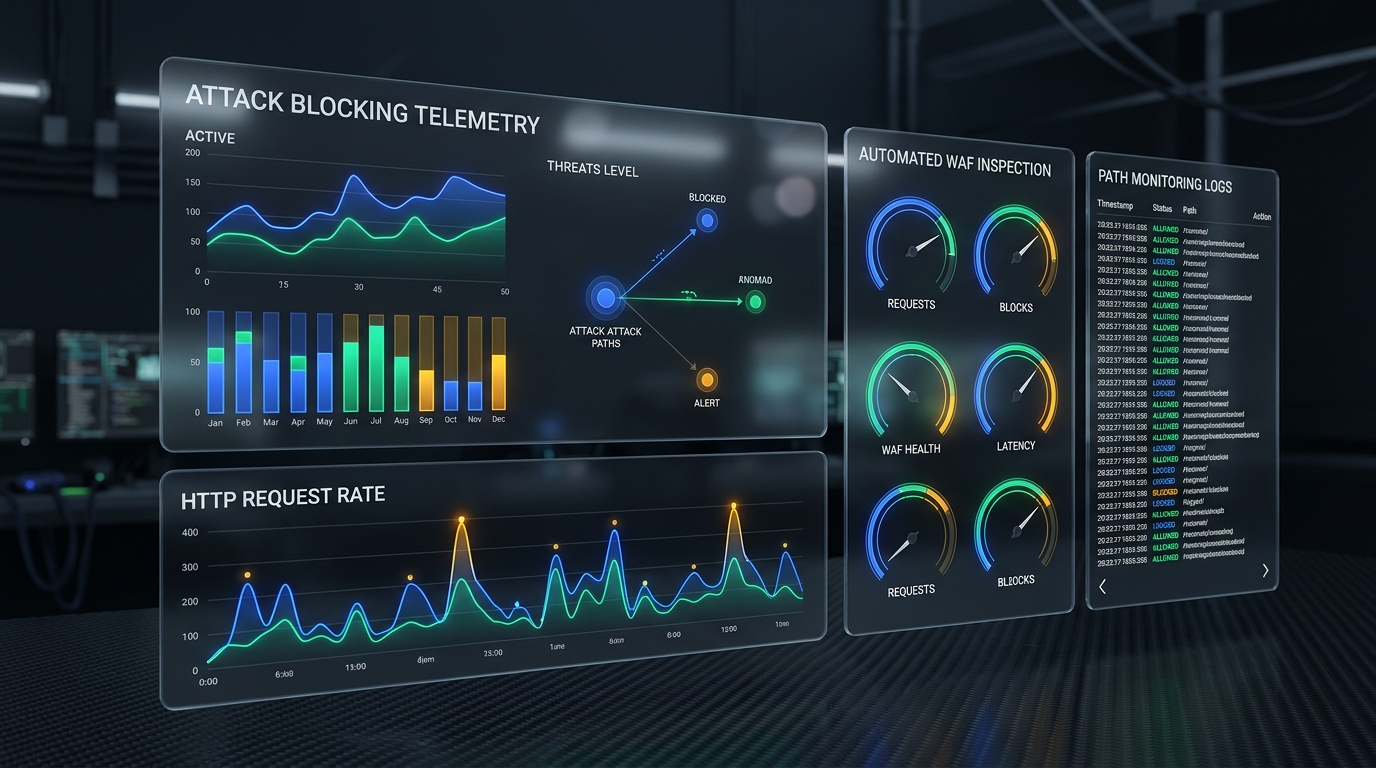
Access logs on honeypots and monitored clusters reveal three primary scanning behaviors:
1. High-Frequency Polling on Target Paths
Botnets continuously cycle through known staging directory variants:
/wp-content/upgrade/core/wordpress/wp-admin/setup-config.php/wp-content/upgrade/wordpress/wp-admin/setup-config.php/wp-content/upgrade/wporg//wp-content/upgrade/temp/
Attackers use automated multi-threaded scrapers that send hundreds of requests per minute, hoping to catch the millisecond window when a site owner clicks “Update Now” or when an automatic update task triggers.
2. Hunting for Abandoned Failed Updates
A large portion of the scanning is not racing active updates at all. Instead, it hunts for older, failed updates where a server crashed midway through an upgrade months ago. If a webmaster has an abandoned staging directory from an earlier failed WordPress 7.1.x update attempt, that site is vulnerable to immediate, non-race exploitation right now.
3. Exploiting Chained Vulnerabilities
In advanced scenarios, attackers combine this exposure with underlying web server flaws. We documented similar memory safety and execution risks in our deep-dive analysis of PHP core vulnerability triage and sysadmin hardening.
What WordPress 7.1.4 Changes
The official patch in WordPress 7.1.4 introduces three distinct defenses to eliminate the attack surface:
- Randomized Staging Directory Names: WordPress no longer extracts update archives into predictable folder paths. The upgrade mechanism now appends 16 cryptographically secure pseudo-random alphanumeric characters to the staging directory name (for example,
/wp-content/upgrade/core_k9F2mP8xQ1vL4aZb/). Because the path cannot be guessed, external attackers cannot target the transient files. - Restored Index Guards: The core updater now enforces index protection (
index.phpand.htaccessaccess restrictions) inside every generated staging directory to block direct HTTP browsing. - Setup Script Execution Lockdown: Security checks now actively detect if a script is executing from an upgrade staging environment, terminating the request immediately before any configuration logic evaluates.
Emergency Remediation Playbook: Step-by-Step
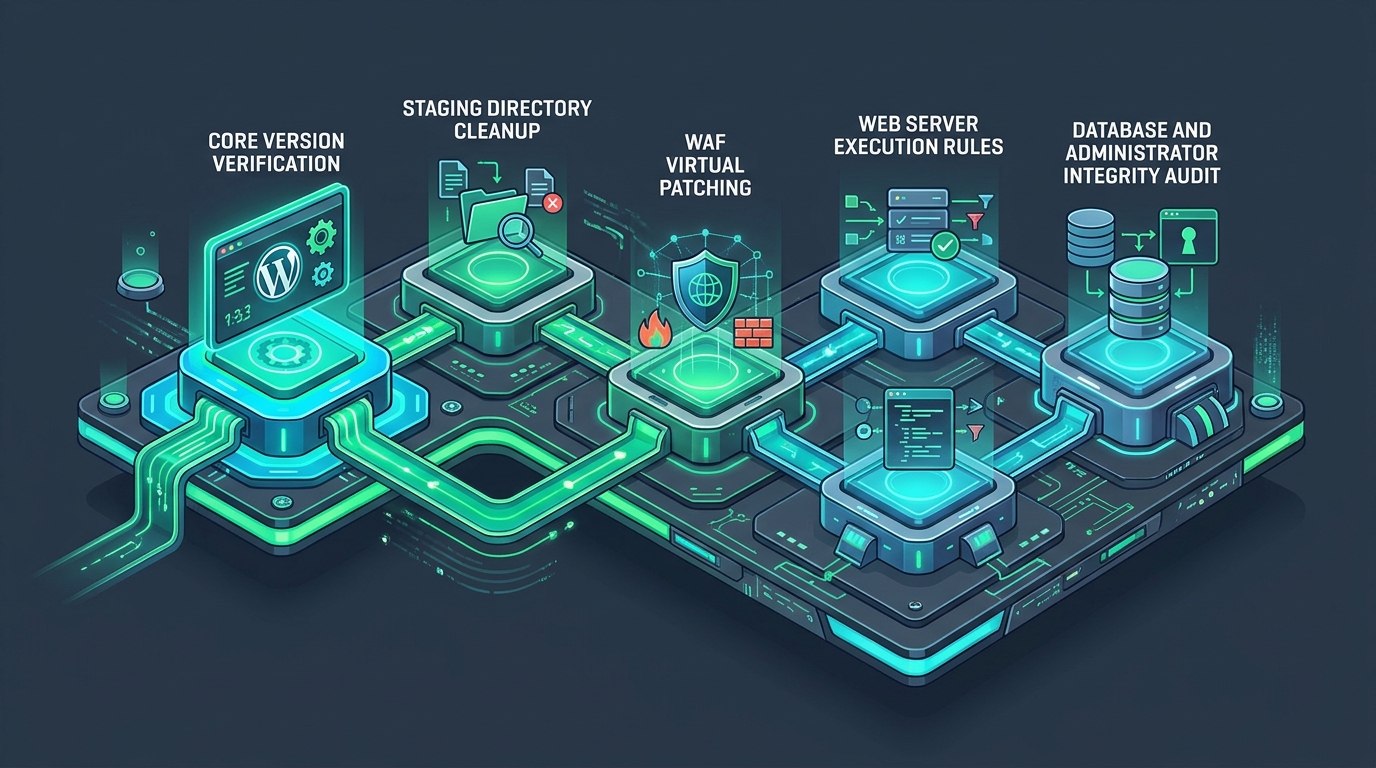
Whether you manage a single WooCommerce shop or a fleet of client websites, execute this five-step remediation procedure immediately.
Step 1: Verify Your Active WordPress Version
Do not assume your site updated itself in the background. Shared hosting memory caps, background cron delays, and restrictive file permissions often block automatic updates silently.
Check your version via the WP-CLI command line:
wp core versionIf you manage your site through the dashboard:
- Log in to your WordPress admin area.
- Open Dashboard -> Updates.
- Verify that your installation reports WordPress 7.1.4 (or a patched branch release such as 7.0.8, 6.9.11, or 6.8.12).
If you are running any version between 4.7 and 7.1.3, update immediately:
wp core updateStep 2: Clean and Inspect wp-content/upgrade/
Even after updating, check for leftover artifacts from past update failures.
Connect to your server via SSH or SFTP, switch to your WordPress root, and inspect the upgrade directory:
ls -la wp-content/upgrade/In a healthy, idle WordPress installation, this directory should be completely empty (or contain only an empty index.php file).
If you see folders named core/, temp/, or any extracted WordPress files, inspect them for unexpected .php files or backdoors, and delete them:
rm -rf wp-content/upgrade/*Recreate an empty index guard file to prevent directory listing:
touch wp-content/upgrade/index.php
echo "<?php // Silence is golden." > wp-content/upgrade/index.php
Step 3: Block Direct PHP Execution in the Upgrade Directory
You should never allow a web browser to execute PHP files inside upload or upgrade directories. This single server configuration rule neutralizes race condition vulnerabilities entirely.
For Nginx Web Servers
Add a location block inside your site’s server configuration (usually in /etc/nginx/sites-available/):
# Block direct execution of PHP scripts in the upgrade directory
location ^~ /wp-content/upgrade/ {
    deny all;
    return 403;
}

# General hardening: block PHP execution in uploads as well
location ^~ /wp-content/uploads/ {
    location ~* \.php$ {
        deny all;
        return 403;
    }
}
Reload Nginx after testing configuration syntax:
sudo nginx -t && sudo systemctl reload nginxFor Apache Web Servers
Create a .htaccess file inside wp-content/upgrade/.htaccess:
# Block all external HTTP access to this directory
<IfModule mod_authz_core.c>
    Require all denied
</IfModule>
<IfModule !mod_authz_core.c>
    Order deny,allow
    Deny from all
</IfModule>

# Prevent PHP script execution
<FilesMatch "\.(php|phtml|php3|php4|php5|php7|phps)$">
    Order Deny,Allow
    Deny from all
</FilesMatch>
For LiteSpeed Web Servers
LiteSpeed automatically honors Apache .htaccess directives. Verify that your .htaccess rules above are active by testing an HTTP request using curl:
curl -I https://yourwebsite.com/wp-content/upgrade/index.phpYou should receive an HTTP 403 Forbidden response.
Step 4: Configure Web Application Firewall (WAF) Rules
If you manage your DNS through Cloudflare or run a host-level WAF, add a custom firewall rule to block probes before they ever reach your web server.
In Cloudflare:
- Go to Security -> WAF -> Custom Rules.
- Click Create rule.
- Set Field:
URI Path, Operator:contains, Value:/wp-content/upgrade/. - Action: Block.
This rule drops automated scanning requests at the edge with zero server resource utilization. To understand broader edge protection and firewall mechanics, review our breakdown on Web Application Firewall fundamentals and tuning.
Step 5: Post-Triage Integrity and Compromise Audit
If your website was running WordPress versions 7.1.0 through 7.1.3 over the past few days, conduct a thorough integrity scan to ensure no automated attacker caught an upgrade window on your installation.
-
Verify Core File Checksums: Run the WP-CLI core verification command to detect modified core files:
wp core verify-checksumsIf WP-CLI reports any modified or unexpected files, investigate them immediately.
-
Audit Administrative Users: Inspect your current administrator user accounts:
wp user list --role=administratorEnsure you recognize every listed account. Threat actors frequently create stealth administrator accounts with names mimicking common plugins (such as
cache_adminorwp_support). -
Check for Unregistered Cron Jobs: Review scheduled background tasks for suspicious function callbacks:
wp cron event list -
Review Hosting Error and Access Logs: Search your server access logs for requests hitting
/wp-content/upgrade/:grep "/wp-content/upgrade/" /var/log/nginx/access.logIf any requests returned HTTP 200 or 302 rather than 403 or 404, treat the host as potentially compromised and restore from a known clean backup. For complete disaster readiness protocols, see our guide on WordPress PHP emergency triage and incident response.
Known Fixes vs. Remaining Unknowns
| Area | What Is Known & Solved | What Remains Unknown or Risky |
|---|---|---|
| WordPress Core | WordPress 7.1.4 fully patches the race condition by randomizing staging paths and blocking setup script execution. | Custom third-party plugin updaters that bypass core update routines may still use predictable staging paths in wp-content/. |
| Automated Exploitation | Wordfence and security feeds confirm widespread automated scanning targeting predictable paths. | The exact number of compromised sites that suffered failed background updates prior to the patch release remains unquantified. |
| Server Configuration | Disallowing PHP execution inside wp-content/upgrade/ offers 100% mitigation against this flaw, even on unpatched versions. | Many budget shared hosting environments restrict .htaccess overrides or run default Nginx configs without upload execution blocks. |
| Clean Installations | Sites updated to 7.1.4 with clean wp-content/upgrade/ folders are safe from this vector. | Sites with lingering core file modifications from prior compromises will not be cleaned simply by updating core. |
Conclusion
The WordPress upgrade-window race condition (CVE-2026-119977) highlights a persistent reality in web operations: automated update systems designed to protect websites can themselves introduce critical attack surfaces if temporary files remain accessible to public traffic.
Securing your infrastructure against this vulnerability requires a dual approach:
- Confirm your WordPress core version is at 7.1.4 or an equivalent backported security branch.
- Enforce strict server-level and WAF execution boundaries so that no script inside
wp-content/upgrade/orwp-content/uploads/can execute under any circumstances.
By implementing defense-in-depth at both the application and web server tiers, site owners can eliminate race condition risks and maintain resilient web operations.