There’s nothing more frustrating than hitting a quota limit mid-coding session with your AI assistant. That’s why I built the Antigravity Usage Stats extension - to give you real-time visibility into your AI model usage right in your VS Code status bar.
If you’re using Antigravity, Google’s AI-first IDE, this lightweight extension ensures you never have to guess where you stand with your quota.
Key Features
Zero-Config Setup
Antigravity Usage Stats automatically detects Antigravity’s language server processes, finds the right port, and connects using your authentication token. No manual configuration needed - just install and start monitoring.
Real-Time Monitoring
The extension periodically fetches your quota data with improved refresh intervals, keeping your status bar updated without impacting VS Code’s performance.
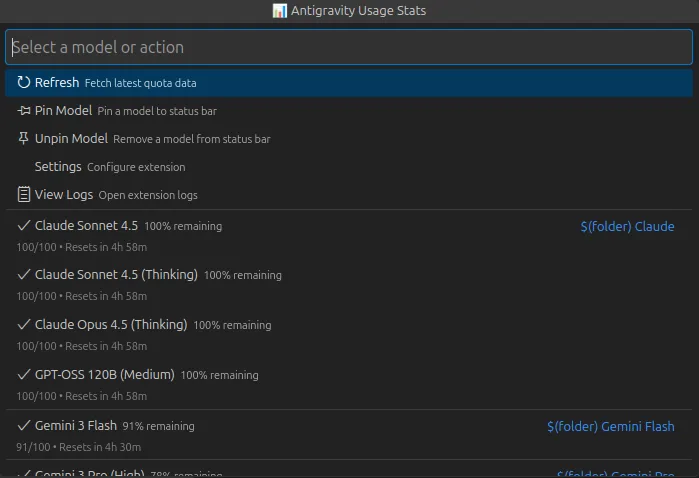
Visual Status Indicators
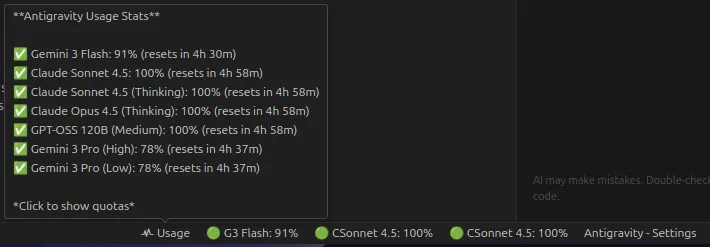
Color-coded indicators let you check your quota status at a glance:
- Green checkmark: Quota healthy (above 20%)
- Yellow warning: Running low (below 20%)
- Red error: Quota exhausted
Interactive Quota Menu
Click the status bar item to see detailed information:
- Progress bars for each AI model
- Exact percentage remaining
- Time until quota resets
- Available prompt credits
Multi-Model Support
Tracks Gemini, Claude, and GPT separately, helping you choose the right model based on availability and task requirements.
Cross-Platform Compatible
Works smoothly on Windows, macOS, and Linux with automatic adaptation to your OS.
Why It Matters
Real-time quota monitoring helps you:
- Plan work sessions around quota availability
- Avoid interruptions during critical tasks
- Improve AI usage by choosing the right moments for assistance
- Develop awareness of how different tasks consume quota
Understanding usage patterns is key for sustainable AI-assisted development. Think of it like checking your fuel gauge - you wouldn’t run out of gas on the highway, so don’t run out of AI quota mid-debug.
Get Started
Install Antigravity Usage Stats from the Open VSX Registry. The extension activates automatically when it detects Antigravity - no setup wizard, API keys, or config files needed.
Customize behavior through VS Code’s settings interface if desired, adjusting refresh intervals or display preferences to match your workflow.
This free, open-source extension stays out of your way while keeping you informed.
Common Mistakes to Avoid
Many developers install quota tools and still get caught off guard. Here are the mistakes I see most often.
Ignoring the yellow warning. When the status bar turns yellow, that means you are below 20% remaining. Some developers keep pushing heavy requests and then hit a wall during a critical refactor. Treat yellow like a fuel light: start wrapping up your current task or switch models.
Not checking reset times. The extension shows when your quota resets, but only if you look. If you burn through your morning allowance, check the timer before planning an afternoon coding session. Waiting 45 minutes can save you from switching contexts.
Assuming all models share one pool. Antigravity separates Gemini, Claude, and GPT. One model can be empty while another has plenty left. Get in the habit of glancing at the quota menu before choosing which model handles your next request.
Over-relying on one provider. If Gemini runs low, try Claude. If Claude is exhausted, switch to GPT. The extension makes this visible, but you still have to act on the information.
Practical Workflow Tips
Here is how I recommend fitting Antigravity Usage Stats into your daily routine.
Check the status bar at the start of each session. Spend five seconds confirming you have quota for the work ahead. This prevents the frustration of starting a complex task only to stall halfway through.
Before long tasks like code reviews or generating tests, open the interactive quota menu. Look at exact percentages and reset times. If numbers look tight, break the task into smaller chunks or delay it until after the reset.
Pair this extension with a simple personal rule: when quota drops below 20%, finish your current thought, then switch tasks to something less AI-dependent. Use that time for documentation, code cleanup, or planning.
If you work across multiple machines, remember that quota is tied to your Antigravity account, not the device. The extension will show the same numbers on your laptop and desktop, so do not assume a fresh machine means fresh quota.
FAQ
Does this extension send my code or prompts to external servers?
No. The extension reads quota data from Antigravity’s local language server. Your code stays on your machine.
What happens if Antigravity is not running?
The status bar item hides or shows a disconnected state. Once Antigravity starts, the extension reconnects automatically.
Can I change how often the quota refreshes?
Yes. Open VS Code settings and search for Antigravity Usage Stats. Adjust the refresh interval to match your preference.
Is this extension free?
Yes. It is open-source and available through the Open VSX Registry without cost.
Key Takeaways
- Real-time quota visibility prevents interruptions during coding sessions.
- Color-coded status indicators let you check usage at a glance.
- Multi-model support helps you switch providers when one runs low.
- The extension requires no configuration beyond installation.
Install Antigravity Usage Stats, keep an eye on the status bar, and stop guessing about your AI quota.