Passwords are the leading cause of account compromise. Users reuse them across sites, share them over insecure channels, and choose weak ones despite warnings. Phishing attacks steal passwords transparently. Data breaches expose them by the billions. Two-factor authentication helps, but not enough: SMS codes can be intercepted, TOTP apps can be phished through real-time relay attacks, and push-notification fatigue trains users to approve prompts they should reject.
Passkeys eliminate these attack vectors entirely. A passkey is a cryptographic key pair where the private key never leaves the user’s device and is never transmitted over any channel. There is no password to phish, no code to intercept, no shared secret to breach from a server. In 2026, passkeys have moved from experiment to default. Microsoft made passkeys the default for new consumer accounts in May 2025. Apple, Google, and Microsoft synchronize passkeys across their ecosystems, which means most of your users can use passkeys today without any additional hardware.
The numbers explain why adoption is accelerating. The FIDO Alliance reports more than 15 billion user accounts can now use passkeys, with over 1 billion passkey activations across consumer platforms. Passkey sign-ins succeed 93% of the time compared with 63% for password sign-ins, and they complete 73% faster. For businesses, passkey-enabled populations see an 81% drop in help-desk authentication incidents.
This guide covers how passkeys work, the WebAuthn Level 3 specification that underlies them, and how to implement passkey authentication alongside your existing password system. If you are still evaluating authentication strategies, our guide to two-factor authentication implementation covers the transition path from passwords to stronger factors.
Why Passkeys Are the Default in 2026
Several forces converged in 2025 and 2026 to push passkeys from optional feature to expected behavior.
Platform readiness. Apple, Google, and Microsoft introduced ecosystem-level passkey managers in 2022 and 2023. A typical hardware refresh cycle means most consumer devices now support passkeys. iOS 16 and later, Android 9 and later, Windows 10 and later, and every evergreen browser support WebAuthn and platform authenticators.
Regulatory pressure. The EU NIS2 Directive actively discourages password-only authentication for key services. NIST SP 800-63-4, published in July 2025, classifies synced authenticators at Authenticator Assurance Level 2, giving enterprises and government agencies a clear mandate to adopt phishing-resistant authentication.
Attack economics. Adversary-in-the-middle phishing kits now dominate the threat landscape. These kits proxy legitimate login flows in real time, harvest SMS or TOTP codes, and replay them before they expire. Passkeys collapse these attacks because the cryptographic assertion is bound to the real origin and cannot be replayed through a proxy.
User experience. Passkeys remove password creation rules, reset flows, and one-time codes. Users sign in with the same biometric or PIN they already use to open their device. The median passkey sign-in takes 8.5 seconds compared with 31.2 seconds for passwords.
How Passkeys Work
Passkeys are built on the FIDO2 standard, specifically the WebAuthn API and the CTAP (Client to Authenticator Protocol). The cryptography is public key cryptography, the same technology behind TLS certificates.
Registration, called the credential creation ceremony:
- Your application server generates a random challenge.
- The browser’s WebAuthn API calls the authenticator, which can be device biometrics, a hardware security key, or a synced passkey provider.
- The authenticator creates a new public-private key pair scoped to your origin domain.
- The authenticator signs the challenge with the private key.
- The browser returns the public key and signed challenge to your server.
- Your server stores the public key associated with the user’s account.
Authentication, called the credential assertion ceremony:
- Your server generates a random challenge.
- The browser prompts the user to verify their identity with Face ID, Touch ID, Windows Hello, or a device PIN.
- The authenticator signs the challenge with the private key.
- The browser returns the signed challenge to your server.
- Your server verifies the signature using the stored public key.
The private key never leaves the device. Your server never sees it. There is nothing for an attacker to steal from your database because you only store public keys. Phishing fails because the authenticator checks the origin domain, your domain, against the stored credential domain. A fake phishing site on a different domain cannot use the credential.
Passkey Synchronization and Cross-Device Use
A significant early concern about passkeys was device dependency. If you lose your phone, do you lose your passkeys? Synchronized passkeys resolve this.
Apple syncs passkeys across all devices signed into the same Apple ID through iCloud Keychain. A passkey created on an iPhone is available on iPad, Mac, and Apple Vision Pro.
Google syncs passkeys across Android devices signed into the same Google account through Google Password Manager. Chrome on macOS and Windows can access Google Password Manager passkeys through the browser or a Chrome extension.
Microsoft supports passkeys through Windows Hello and Microsoft Authenticator, with synced passkeys for Microsoft account holders.
Third-party password managers including 1Password, Bitwarden, Dashlane, and NordPass support passkey storage and sync, enabling cross-platform access for users who do not want to rely on a single ecosystem.
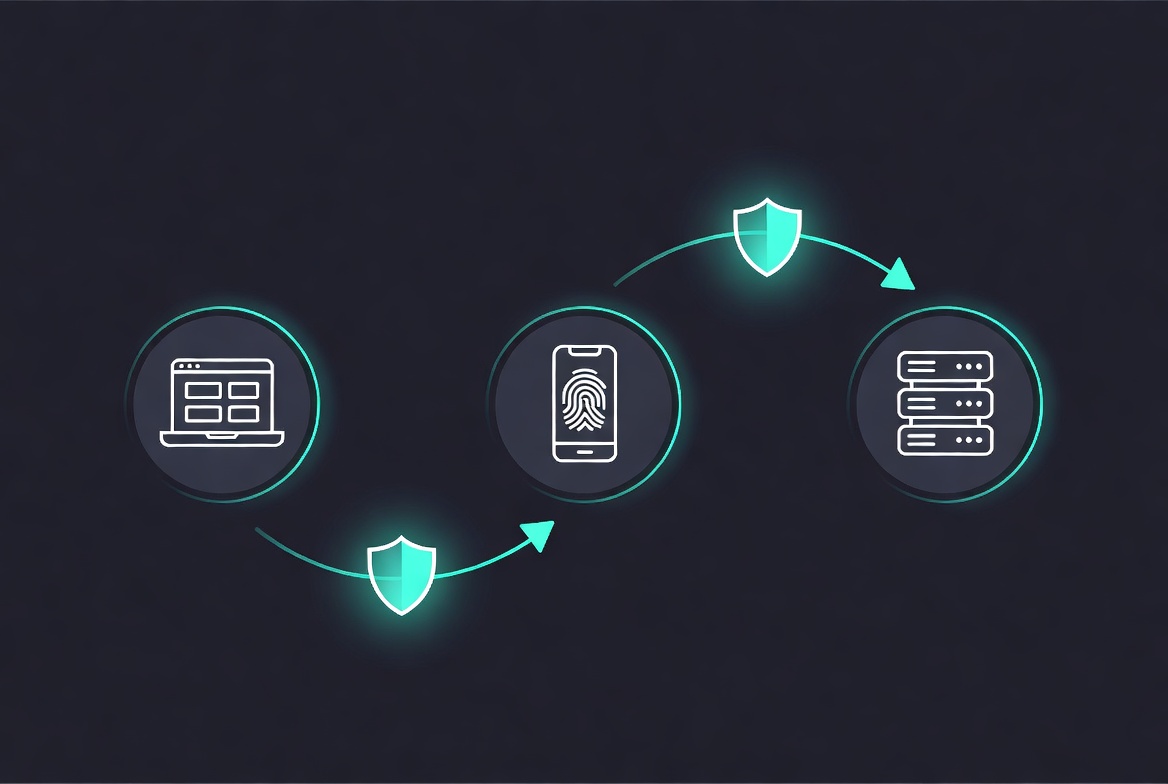
For users with cross-platform devices, such as an iPhone and a Windows PC, passkeys can be used cross-device through a QR code flow. The user scans the QR code displayed on the PC with the iPhone, approves with Face ID on the iPhone, and the PC authenticates. This hybrid-device authentication is part of the CTAP specification and works without manual credential transfer.
Browser and Platform Support
WebAuthn is supported in all major browsers as of 2026: Chrome, Firefox, Safari, and Edge. Platform support is effectively universal on the client side. iOS supports passkeys from iOS 16. Android supports them from Android 9. Windows Hello on Windows 10 and 11 supports FIDO2 credentials.
The main coverage gaps are older Android devices, some enterprise environments with restricted browser versions, and users on shared devices where they cannot register biometrics. This is why implementing passkeys alongside existing authentication is important rather than replacing passwords immediately.
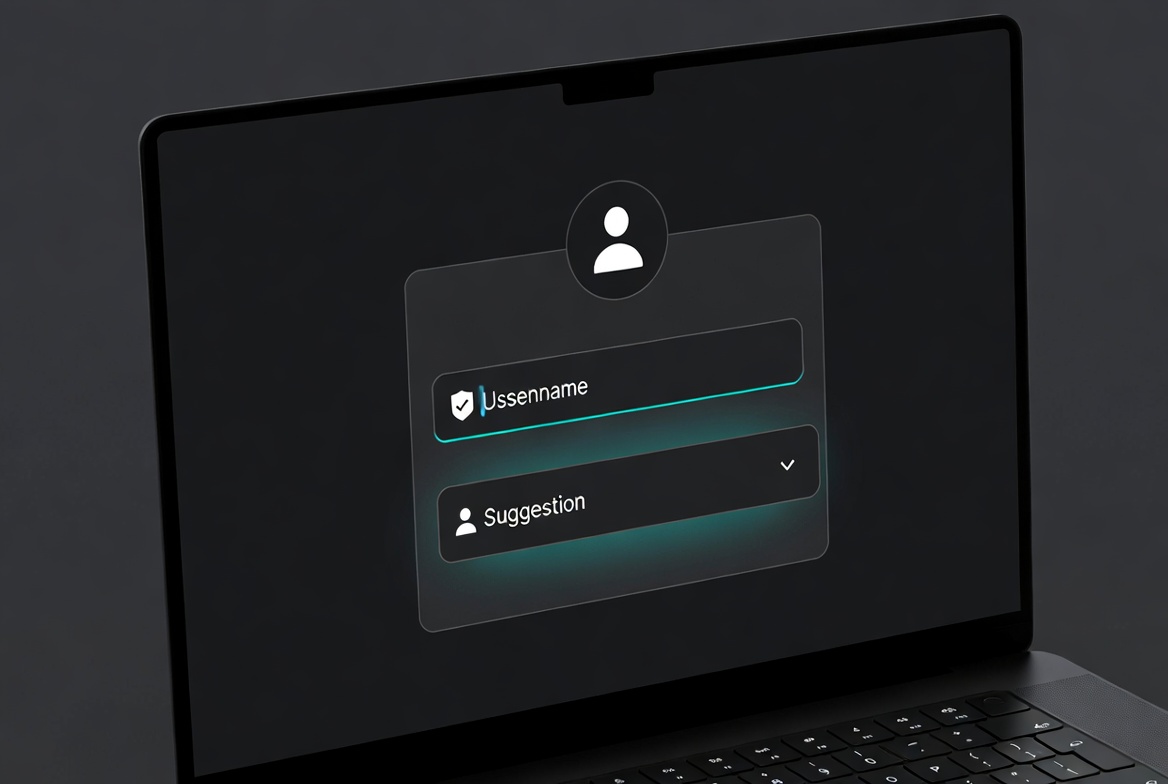
Conditional UI is the key browser feature that makes passkeys practical. When a user focuses the username field, the browser can automatically suggest available passkeys in an autofill-style dropdown. This removes friction and signals to users that passkeys are an option. Conditional UI is supported in Safari, Chrome, and Edge as of 2025.
Implementing WebAuthn in Production
Use SimpleWebAuthn or an equivalent server library to handle the WebAuthn cryptographic verification. You do not need to implement the crypto primitives yourself. SimpleWebAuthn provides the server package @simplewebauthn/server and the browser package @simplewebauthn/browser.
Server setup with SimpleWebAuthn
Define your relying party constants first. These describe your site to authenticators.
const rpName = 'Veduis Example App';
const rpID = 'example.com';
const origin = `https://${rpID}`;
The rpID must match the effective domain where registrations and authentications occur. For local development, localhost is valid.
Registration endpoint
import {
  generateRegistrationOptions,
  verifyRegistrationResponse,
} from '@simplewebauthn/server';

app.get('/auth/generate-registration-options', async (req, res) => {
  const user = getUserFromSession(req);
  const userPasskeys = getUserPasskeys(user.id);

  const options = await generateRegistrationOptions({
    rpName,
    rpID,
    userName: user.email,
    userDisplayName: user.displayName,
    attestationType: 'none',
    excludeCredentials: userPasskeys.map(passkey => ({
      id: passkey.id,
      transports: passkey.transports,
    })),
    authenticatorSelection: {
      residentKey: 'preferred',
      userVerification: 'preferred',
      authenticatorAttachment: 'platform',
    },
  });

  // Store the challenge so you can verify the response
  setCurrentChallenge(user.id, options.challenge);

  res.json(options);
});
Setting residentKey: 'preferred' allows synced passkeys on phones and laptops while not consuming limited resident-key slots on hardware security keys. Setting authenticatorAttachment: 'platform' prefers built-in authenticators such as Touch ID or Windows Hello. Use 'cross-platform' if you want to guide users toward security keys.
Verify registration endpoint
app.post('/auth/verify-registration', async (req, res) => {
  const user = getUserFromSession(req);
  const challenge = getCurrentChallenge(user.id);

  let verification;
  try {
    verification = await verifyRegistrationResponse({
      response: req.body,
      expectedChallenge: challenge,
      expectedOrigin: origin,
      expectedRPID: rpID,
    });
  } catch (error) {
    return res.status(400).json({ error: error.message });
  }

  const { verified, registrationInfo } = verification;

  if (verified && registrationInfo) {
    const { credential } = registrationInfo;
    saveUserPasskey(user.id, {
      id: credential.id,
      publicKey: credential.publicKey,
      counter: credential.counter,
      transports: credential.transports,
      deviceType: registrationInfo.credentialDeviceType,
      backedUp: registrationInfo.credentialBackedUp,
    });
  }

  res.json({ verified });
});
Store the credential ID, public key, counter, transports, device type, and backup state. The counter prevents replay attacks. The backup state tells you whether the credential is synced across devices.
Authentication endpoint
import {
  generateAuthenticationOptions,
  verifyAuthenticationResponse,
} from '@simplewebauthn/server';

app.post('/auth/generate-authentication-options', async (req, res) => {
  const { email } = req.body;
  const user = getUserByEmail(email);
  const userPasskeys = user ? getUserPasskeys(user.id) : [];

  const options = await generateAuthenticationOptions({
    rpID,
    allowCredentials: userPasskeys.map(passkey => ({
      id: passkey.id,
      transports: passkey.transports,
    })),
    userVerification: 'preferred',
  });

  // Store the challenge for verification
  setCurrentChallengeForAuthentication(email, options.challenge);

  res.json(options);
});
Use an empty allowCredentials array if you want the authenticator to offer all available passkeys without disclosing which credentials belong to the user. This improves privacy but can produce a longer list on shared devices.
Verify authentication endpoint
app.post('/auth/verify-authentication', async (req, res) => {
  const { email, response } = req.body;
  const user = getUserByEmail(email);
  const challenge = getCurrentChallengeForAuthentication(email);
  const passkey = getUserPasskey(user.id, response.id);

  let verification;
  try {
    verification = await verifyAuthenticationResponse({
      response,
      expectedChallenge: challenge,
      expectedOrigin: origin,
      expectedRPID: rpID,
      credential: {
        id: passkey.id,
        publicKey: passkey.publicKey,
        counter: passkey.counter,
        transports: passkey.transports,
      },
    });
  } catch (error) {
    return res.status(400).json({ error: error.message });
  }

  const { verified, authenticationInfo } = verification;

  if (verified) {
    // Update the counter to prevent replay attacks
    updatePasskeyCounter(passkey.id, authenticationInfo.newCounter);
    createUserSession(res, user.id);
  }

  res.json({ verified });
});
Always update the stored counter after a successful authentication. If the new counter is not greater than the stored counter, reject the assertion.
Client implementation
Use @simplewebauthn/browser to call the authenticator.
import { startRegistration, startAuthentication } from '@simplewebauthn/browser';

async function registerPasskey() {
  const options = await fetch('/auth/generate-registration-options')
    .then(r => r.json());

  let attResp;
  try {
    attResp = await startRegistration({ optionsJSON: options });
  } catch (error) {
    if (error.name === 'InvalidStateError') {
      showError('This authenticator is already registered.');
    } else {
      showError(error.message);
    }
    return;
  }

  const verification = await fetch('/auth/verify-registration', {
    method: 'POST',
    headers: { 'Content-Type': 'application/json' },
    body: JSON.stringify(attResp),
  }).then(r => r.json());

  if (verification.verified) {
    showSuccess('Passkey registered successfully.');
  }
}
For conditional UI during sign-in, use the browser’s autofill integration.
async function authenticateWithConditionalUI() {
  const options = await fetch('/auth/generate-authentication-options', {
    method: 'POST',
    headers: { 'Content-Type': 'application/json' },
    body: JSON.stringify({ email: getEmailFromField() }),
  }).then(r => r.json());

  try {
    const authResp = await startAuthentication({ optionsJSON: options, useBrowserAutofill: true });

    const verification = await fetch('/auth/verify-authentication', {
      method: 'POST',
      headers: { 'Content-Type': 'application/json' },
      body: JSON.stringify({ email: getEmailFromField(), response: authResp }),
    }).then(r => r.json());

    if (verification.verified) {
      redirectToDashboard();
    }
  } catch (error) {
    showError('Passkey authentication failed. Try your password.');
  }
}
Conditional UI requires the useBrowserAutofill: true option and that the input field has autocomplete="webauthn".
Account Recovery
Account recovery is the most important UX challenge with passkeys. Users who lose all their devices and have no synced passkeys need another way to regain access.
Recovery code approach. Generate a set of one-time recovery codes at passkey registration. Store them hashed on the server. Give the user the plaintext codes to store securely. A recovery code signs the user in and lets them register a new passkey. This is the most secure self-service option.
Email link approach. Send a time-limited authentication link to the verified email on the account. This is less secure than recovery codes because it depends on email account security, but it is familiar to users and easy to implement.
Support-assisted recovery. For high-security applications, require identity verification through a support process. This is slow but the most secure option for financial and healthcare applications.
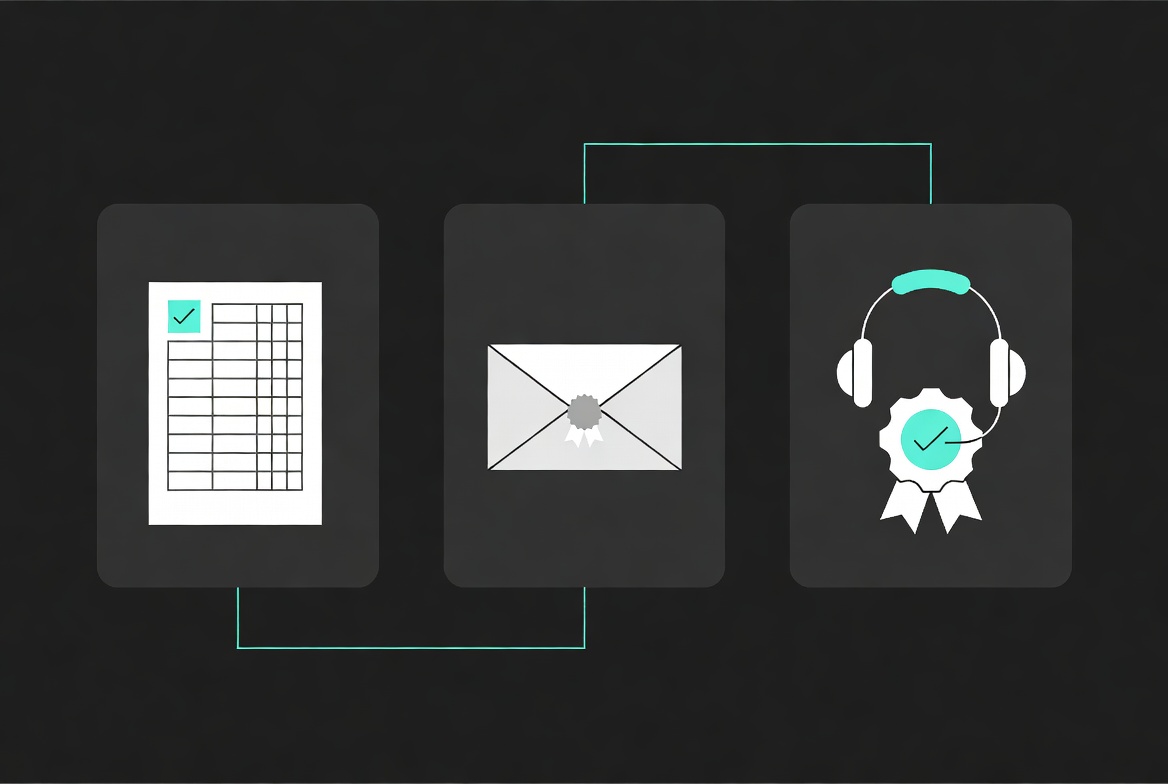
The right recovery mechanism depends on your application’s security requirements. Most consumer apps accept email link recovery. Financial and healthcare applications typically require more rigorous verification. Whichever path you choose, test it with real users before you remove password fallback.
UX Best Practices for Passkey Enrollment
Do not replace passwords with passkeys in one step. Add passkeys as an additional option alongside existing authentication.
- Add a passkeys section to account settings where users can register a passkey after they have already signed in.
- On the login page, show passkey authentication as the primary option with “Sign in with password” as the fallback.
- As passkey usage grows in your user base, consider making passwords optional for accounts that have registered a passkey and a recovery method.
Users who register passkeys will use them by preference because they are faster than passwords. Users who do not register passkeys continue with passwords unchanged. This lets you build passkey adoption gradually without forcing users through a confusing transition.
The FIDO Alliance publishes UX guidelines for passkeys that cover enrollment flows, error messages, and recovery patterns validated through user research.
Common Implementation Mistakes
Teams new to WebAuthn make the same mistakes repeatedly.
Storing the private key. You never receive the private key. If your code tries to extract or store it, something is wrong. Only the credential ID, public key, counter, and metadata belong in your database.
Forgetting to update the counter. WebAuthn authenticators maintain a signature counter. If you do not update your stored counter after each successful authentication, you cannot detect cloned authenticators or replay attacks.
Using the wrong origin in development. WebAuthn credentials are bound to an exact origin. A credential registered on http://localhost:3000 will not work on https://localhost:3000. Use environment-specific relying party IDs during development and staging.
Not handling unsupported browsers. Some users will be on older devices or restricted enterprise browsers. Always provide a password fallback and a clear error message when passkeys are unavailable.
Over-restricting authenticator selection. Requiring platform authenticators excludes users who prefer hardware security keys. Requiring cross-platform authenticators forces everyone to buy a hardware key. Use preferred rather than required unless you have a specific compliance reason.
Skipping recovery planning. Users will lose devices. If you do not have a recovery path before you disable passwords, you will lock people out of their accounts.
Testing Your Passkey Implementation
Test on real devices and browsers, not just emulators.
Device matrix. Test on iOS Safari with Touch ID or Face ID, Android Chrome with fingerprint, Windows 11 with Windows Hello, and macOS Safari with Touch ID. Each platform has slightly different UX and error conditions.
Cross-device authentication. Test registering a passkey on an iPhone and using it to sign in on a Windows PC through the QR code flow. This is a common real-world scenario.
Negative cases. Test canceling the biometric prompt, using an unsupported browser, attempting to authenticate on a phishing lookalike domain, and replaying an old authentication response. Each should fail cleanly.
Conditional UI. Verify that the passkey suggestion appears in the username field autofill dropdown and that selecting it triggers the authentication flow.
For additional security testing guidance, see our post on web security for frontend developers.
Compliance and Security Considerations
Passkeys satisfy strong authentication requirements for several compliance frameworks. NIST SP 800-63-4 recognizes synced passkeys at AAL2. PCI DSS expects strong authentication for access to cardholder data environments. SOC 2 audits look for phishing-resistant authentication for privileged access.
If you operate in healthcare or finance, you may need device-bound passkeys or hardware security keys for privileged administrators rather than synced consumer passkeys. WebAuthn supports both through attestation and authenticator allowlists.
Rate-limit your registration and authentication endpoints. The same API rate limiting patterns you apply to password login endpoints apply to WebAuthn endpoints. An attacker can still enumerate usernames through the challenge-generation endpoint if you do not protect it.
When to Keep Passwords
Passkeys are not appropriate for every user or every environment. Keep password fallback for:
- Users on older devices that do not support WebAuthn
- Shared devices where biometrics are not available
- Enterprise environments that mandate specific authentication hardware
- Recovery flows where no registered passkey is available
The goal is not to eliminate passwords overnight. The goal is to make passwords a fallback rather than the default.
Conclusion
Passkeys are the most meaningful improvement to web authentication since the introduction of TLS. They remove the weakest link in account security, the reusable password, while making sign-in faster and more reliable for users.
Implementation is not trivial, but it is well within reach for most development teams. Use SimpleWebAuthn or an equivalent library to handle the cryptography. Implement registration and authentication ceremonies with careful attention to challenge storage, origin validation, and counter updates. Provide recovery paths before you remove password fallback. Test on real devices across platforms.
If you are building or modernizing a web application in 2026, passkeys should be on your roadmap. Your users will sign in faster, your support team will handle fewer account lockouts, and your security posture will improve. For teams evaluating backend technology choices alongside authentication changes, our comparison of Rust versus Node.js for backend development covers the performance and security trade-offs that matter in production systems.