A screen reader testing workflow consists of four disciplined steps: install NVDA and JAWS in an audit environment, execute a structured test script across your highest-value user flows, log acoustic output against specific WCAG failure criteria, and reconcile your findings with automated browser scans.
Automated scanners map to roughly a third of WCAG success criteria. In our 64-case benchmark, axe-core still caught about 61 percent of raw defect volume because the same defects repeat across many elements, while it missed 25 of 64 distinct failure modes entirely. Those failures, including lost focus states, silent form validation errors, inaccessible custom widgets, and scrambled reading orders, surface only when a human tester drives assistive technology through real user interactions.
Last spring I audited an e-commerce client whose continuous integration pipeline ran automated axe tests on every pull request. Their scans passed with zero violations. Two weeks later, a blind customer called their customer service desk because the final payment confirmation button was unreachable after an address modal opened. That single inaccessible dialog cost the client an emergency remediation sprint and hundreds of lost sales.
Automating baseline checks in CI stops mechanical regressions, as outlined in our Playwright accessibility testing CI guide. But automated scanners evaluate code structure, not user experience. This guide provides the exact manual screen reader workflow I use across enterprise audits, the key interaction scripts to run on core conversion flows, and the reconciliation process required to build defensible compliance records.
Why NVDA and JAWS Cover the Vast Majority of Desktop Audits
Two software suites dominate desktop screen reader usage in the United States and globally. According to the WebAIM Screen Reader User Survey, NVDA and JAWS represent over 85 percent of primary and secondary desktop screen reader usage combined.
Understanding their deployment profiles helps you allocate testing budgets effectively:
- NVDA (NonVisual Desktop Access): Free, open-source, and maintained by the Australian non-profit NV Access. It is lightweight, updates quarterly, and represents the primary tool for independent evaluators, frontend engineers, and cost-conscious users worldwide.
- JAWS (Job Access With Speech): Developed by Freedom Scientific, JAWS is the entrenched enterprise standard across federal agencies (Veterans Affairs, Social Security Administration, Department of Defense), financial institutions, and healthcare systems.
The financial disparity between the two tools often paralyzes development teams:
- NVDA costs $0.
- JAWS runs approximately $1,095 per year for an individual Home license and $1,595 per year for a Professional commercial license.
You do not need a multi-thousand-dollar software budget to run credible screen reader audits. Start with NVDA for daily engineering checks and sprint regression tests. Then utilize JAWS in its free 40-minute timed evaluation mode (which resets on system reboot) or rent an enterprise license for one month prior to major production releases or formal VPAT submissions.
Apple VoiceOver on macOS and iOS remains valuable for mobile testing and Safari compliance, but for desktop enterprise and government procurement, Windows running NVDA and JAWS represents the primary benchmark.
Setting Up Your Engineering Audit Environment
Setting up a clean screen reader testing environment takes less than twenty minutes. If your development team works on macOS or Linux machines, configure a Windows 11 virtual machine using Parallels Desktop, UTM, or a dedicated cloud testing workstation.
Three configuration rules prevent wasted hours and distorted findings:
1. Maintain Default Speech Rates and Voices
Do not increase speech synthesis rates to match blind power users who listen at 400 to 600 words per minute. You are evaluating synthesized pronunciation, punctuation handling, and semantic accuracy, not your personal listening speed. Keep NVDA and JAWS set to standard default rates (30 to 45 percent speed) using standard synthesizer voices like Windows OneCore or Eloquence.
2. Enable Real-Time Speech Text Logs
Relying solely on auditory output leads to missed details and unrecorded defects. Both major screen readers provide real-time visual speech consoles that mirror spoken output into text:
- In NVDA: Open the menu bar via
NVDA Key + N> Tools > Speech Viewer. Check “Show Speech Viewer on Startup”. - In JAWS: Open the JAWS utility menu and launch Speech History (
JAWS Key + Space, followed byH).
These speech logging windows allow developers to copy the exact synthesized text string, paste it directly into Jira or GitHub issues, and cite verbatim evidence in accessibility conformance reports.
3. Match Dominant Browser Pairings
Assistive technologies interface with the operating system through specific browser accessibility APIs. Testing mismatched combinations produces false bugs:
- Primary Pairing: NVDA paired with Google Chrome or Mozilla Firefox (using the IAccessible2 interface).
- Secondary Pairing: JAWS paired with Google Chrome or Microsoft Edge (using UI Automation and Chromium internals).
Never run desktop accessibility audits in Internet Explorer mode or outdated legacy browsers. The W3C accessibility evaluation guidance emphasizes testing modern, standard-compliant browser pairings that reflect actual user demographics.
Understanding Interaction Mechanics: Browse Mode vs. Focus Mode
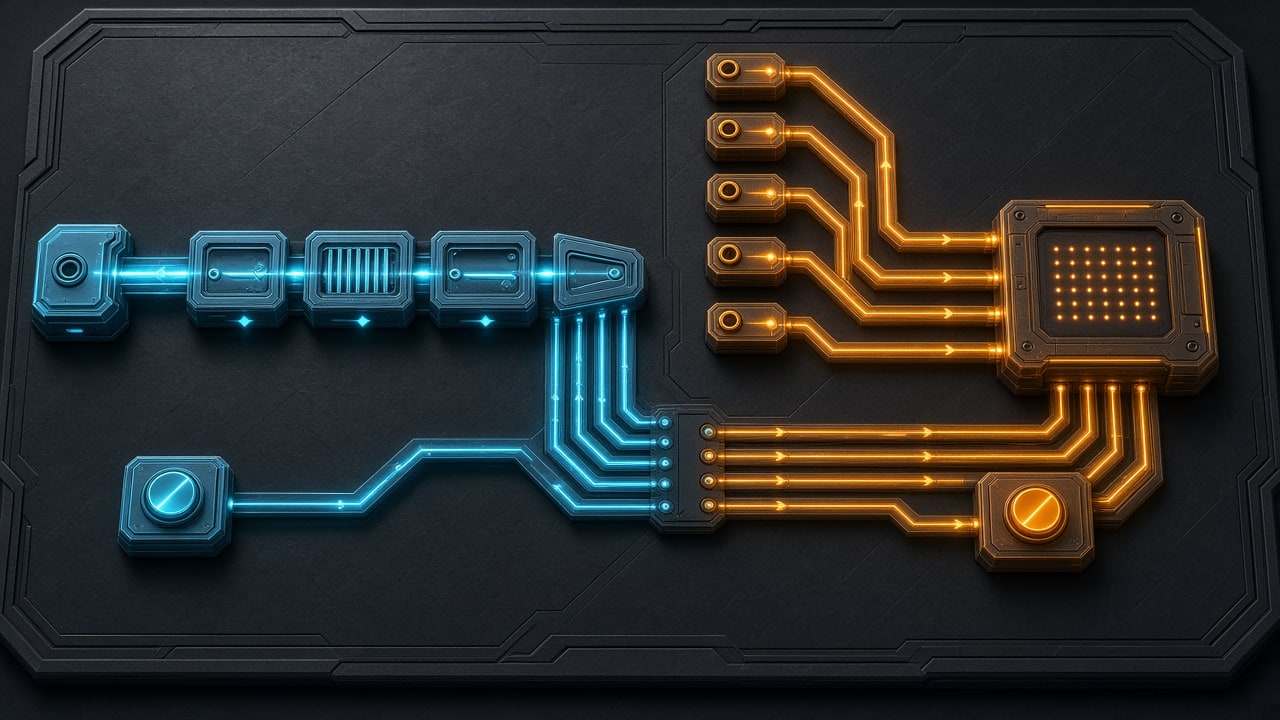
The single biggest obstacle for sighted engineers testing screen readers is confusing virtual navigation with native keyboard interaction. Every major desktop screen reader operates in two distinct operational states.
Browse Mode (Virtual Buffer Mode)
When a web page loads, the screen reader creates a flat, linear text representation of the Document Object Model called the virtual buffer. In Browse Mode:
- Pressing Down Arrow reads through elements line by line, including text paragraphs, list items, and headings.
- Single-letter quick keys let users scan the document structure without tabbing:
H: Jump to the next heading (Shift + Hmoves to previous).1through6: Jump to specific heading levels (<h1>through<h6>).D: Jump to the next landmark region (<header>,<nav>,<main>,<footer>).T: Jump to the next HTML table.F: Jump to the next form control.K: Jump to the next hyperlink.
In Browse Mode, keystrokes are intercepted by the screen reader software rather than passed to the browser application.
Focus Mode (Forms Mode)
When a user interacts with a form input, textarea, slider, or custom rich text editor, the screen reader must stop intercepting keystrokes so the user can type text or use arrow keys within the input field.
In Focus Mode:
- Typing characters enters text into the HTML input rather than triggering quick navigation shortcuts.
- Pressing Tab advances focus to the next interactive focusable element.
- Pressing Escape exits Focus Mode and returns the user to Browse Mode.
The Mode-Switching Failure Trap
Under standard HTML form design, the screen reader automatically toggles from Browse Mode to Focus Mode when the user tabs into an <input type="text"> or <select> menu, playing a distinct high-pitched audio chime. When focus tabs out of the form, it emits a low-pitched chime and returns to Browse Mode.
Modern JavaScript web applications frequently break this contract:
- Unsemantic Custom Inputs: Building custom input fields out of
<div>or<span>elements without appropriate ARIA attributes (role="textbox",tabindex="0") prevents the screen reader from recognizing the form control. The user types letters expecting text input, but NVDA interprets the keys as navigation commands, jumping all over the page. - Focus Traps in Complex Menus: Custom autocomplete comboboxes that capture keystrokes without providing an Escape key handler trap the user in Focus Mode indefinitely.
- Manual Mode Override: If a custom interactive component fails to switch modes automatically, press
NVDA Key + Space(in NVDA) orEnter(in JAWS) to force the transition. If your users must manually force Focus Mode to type into your checkout form, your markup violates WCAG 4.1.2 Name, Role, Value.
The Core Six-Key Testing Toolkit
You do not need to memorize dozens of shortcut combinations to run effective audits. Six core key commands expose over 90 percent of screen reader barriers:
| Command | Primary Action | Target Evaluation |
|---|---|---|
| Tab / Shift+Tab | Moves focus through focusable interactive elements | Tests focus visibility, DOM sequence, skip links |
| H / Shift+H | Jumps forward/backward through heading levels | Tests semantic content outline and heading hierarchy |
| D | Jumps between HTML5 landmark regions | Tests page orientation (header, nav, main, footer) |
| Down / Up Arrow | Reads linearly through virtual buffer | Tests text flow, image descriptions, list structure |
| Enter / Space | Activates links, buttons, and form checkboxes | Tests programmatic activation handlers |
| NVDA Key + Space | Toggles between Browse Mode and Focus Mode | Tests custom widget interaction and input trapping |
Note: The “NVDA Key” is mapped to either the Insert key or the CapsLock key during NVDA initial setup.
Step-by-Step Test Scripts for High-Conversion User Flows
Aimless clicking with a screen reader produces confusion. Consistent testing requires executing structured, repeatable scripts across your application’s primary conversion paths.
Script 1: The 7-Point Landing Page Sweep
Run this script on every marketing landing page, service page, and documentation template:
Step 1: Open the target URL and let the page load completely.
        Listen: Does the screen reader announce a descriptive page title and document readiness?
        Criterion: WCAG 2.4.2 Page Titled (Level A)

Step 2: Press Tab once immediately after load.
        Listen: Does a visible "Skip to main content" link appear and get announced?
        Action: Press Enter on the skip link.
        Verify: Does focus move directly to the <main> landmark past the header navigation?
        Criterion: WCAG 2.4.1 Bypass Blocks (Level A)

Step 3: Press H repeatedly to traverse all page headings.
        Verify: Is there exactly one <h1> heading? Does the outline follow a logical hierarchy
        without skipping levels (e.g., jumping from <h2> directly to <h4>)?
        Criterion: WCAG 1.3.1 Info and Relationships (Level A)

Step 4: Press D to cycle through all landmark regions.
        Verify: Are <header>, <nav>, <main>, and <footer> present?
        If multiple <nav> elements exist, do they carry distinguishing aria-label values?
        Criterion: WCAG 1.3.1 Info and Relationships (Level A)

Step 5: Tab through all header links and buttons.
        Listen: Does every icon-only button (search, mobile menu, cart) have a clear accessible name?
        Criterion: WCAG 4.1.2 Name, Role, Value (Level A)

Step 6: Use Down Arrow to read through hero banners and cards.
        Listen: Are decorative background illustrations skipped silently?
        Do informative diagrams provide substantive text descriptions?
        Criterion: WCAG 1.1.1 Non-text Content (Level A)

Step 7: Tab to the footer.
        Verify: Are copyright strings, legal policies, and social links readable in order?
Script 2: Dynamic Form Validation and Error Handling
Forms represent the highest-risk drop-off point for disabled users. Sighted users see red borders and error icons immediately. Screen reader users rely entirely on acoustic announcements.
Step 1: Tab into the first form field (e.g., Email Address).
        Listen: Does NVDA switch to Focus Mode with a chime?
        Does it read the field label, input type, and required state (e.g., "Email Address, edit, required")?
        Criterion: WCAG 3.3.2 Labels or Instructions (Level A)

Step 2: Check for helper instructions.
        If helper text exists (e.g., "Password must be 8+ characters"), is it announced upon focus?
        Verify: The input contains aria-describedby pointing to the helper text element id.
        Criterion: WCAG 1.3.1 Info and Relationships (Level A)

Step 3: Leave required fields blank and activate the Submit button with Enter.
        Listen: Does focus move to an error summary, or does an aria-live announcement fire?
        Listen: What does the user hear? If there is complete silence, the form fails compliance.
        Criterion: WCAG 3.3.1 Error Identification (Level A)

Step 4: Tab backward to the offending input fields.
        Listen: Does the input announce its invalid state and the specific error message?
        Expected: "Email Address, edit, invalid entry, Please enter a valid email format."
        Verify: Input carries aria-invalid="true" and aria-describedby links to the error element.
        Criterion: WCAG 3.3.3 Error Suggestion (Level AA)
Script 3: Modal Dialogs and Slide-Over Drawers
Dialogs and flyout drawers account for a massive percentage of severe accessibility lawsuits:
Step 1: Tab to the button that triggers a modal dialog (e.g., "Delete Project" or "Open Filter Drawer").
        Listen: Is the control announced as a button?
        Action: Press Enter to open the dialog.

Step 2: Check initial focus placement.
        Verify: Did focus immediately land inside the modal container (either on the dialog heading,
        the first input, or the primary action)?
        Failure: Focus remaining on the background trigger button or jumping to <body>.
        Criterion: WCAG 2.4.3 Focus Order (Level A)

Step 3: Tab repeatedly through the modal controls.
        Verify: Does focus loop strictly inside the modal dialog?
        Failure: Tabbing past the last modal button sends focus to background page links behind the overlay.
        Criterion: WCAG 2.1.2 No Keyboard Trap (Level A)

Step 4: Press Escape key.
        Verify: Does the modal close immediately?
        Verify: Does keyboard focus return directly to the trigger button that launched the modal?
        Failure: Focus resetting to the top of the browser document.
        Criterion: WCAG 2.4.3 Focus Order (Level A)
Script 4: Single Page Application (SPA) Route Transitions
Client-side routing frameworks (React Router, Next.js, Nuxt) do not trigger standard browser page refreshes. When a user clicks an internal link, the DOM updates dynamically, but screen readers may remain completely unaware:
Step 1: In Browse Mode, tab to an internal navigation link (e.g., "/pricing/").
        Action: Press Enter to open the link.

Step 2: Observe screen reader output immediately following route change.
        Listen: Is the new page document title announced?
        Listen: Does focus shift to the new <h1> heading or an accessible live region?
        Failure: The screen reader remains silent, leaving focus attached to a disconnected link node.
        Criterion: WCAG 2.4.2 Page Titled (Level A) and 4.1.2 Name, Role, Value (Level A)
Reconciling Manual Screen Reader Logs With Automated axe Scans
A professional accessibility audit requires harmonizing automated scanner results with manual screen reader transcripts into a unified remediation report.

When reconciling findings, issues group into three distinct categories:
Category 1: The Automated Blindspots (Manual Only)
These critical defects pass automated tools like axe-core with flying colors:
- Missing Accessible Names on Complex Controls: A
<button>containing only an SVG icon might pass automated linters if an emptytitleattribute exists. To NVDA, the button is announced as “Button, blank”. - Broken Visual vs. DOM Reading Sequence: Using CSS
orderorflex-direction: row-reverseto display a sidebar before main content looks correct to sighted users. But NVDA reads the underlying DOM structure, resulting in a confusing, backwards reading order. - Unannounced Dynamic Updates: Asynchronous cart totals updating via fetch requests pass automated DOM scans, but screen reader users hear zero feedback unless wrapped in an
aria-live="polite"container.
Category 2: Low-Impact Syntax Noise (Automated Only)
Automated scanners frequently flag code issues that create zero tangible barrier for real assistive technology users:
- Redundant landmark roles (e.g.,
<nav role="navigation">). Modern screen readers handle native HTML5 elements without explicit ARIA role duplication. - Minor contrast ratios on decorative or secondary border elements.
Triage by real-world user impact rather than raw scanner violation counts.
Category 3: High-Confidence Overlaps
Where automated scans and manual testing align:
- Form inputs lacking
<label>elements. - Meaningful images missing
altattributes. - Duplicate element
idattributes that breakaria-labelledbyrelationships.
For a broader overview of legal compliance obligations, read our analysis of ADA website lawsuit trends.
The Six Most Common Screen Reader Regressions in Modern Web Apps
Review your frontend codebases against these six failure patterns:
<!-- REGRESSION 1: The Icon-Only Mystery Button -->
<!-- FAILS: Announces "Button" with zero purpose -->
<button class="p-2"><svg class="icon-trash"></svg></button>
<!-- FIX: Provide explicit accessible name -->
<button class="p-2" aria-label="Delete project from database"><svg class="icon-trash" aria-hidden="true"></svg></button>

<!-- REGRESSION 2: Form Error Disconnected from Input -->
<!-- FAILS: Screen reader announces input name, but never announces the error message below -->
<label for="usr">Username</label>
<input id="usr" type="text" />
<span class="error-msg">Username already taken</span>
<!-- FIX: Connect error message programmatically via aria-describedby -->
<label for="usr">Username</label>
<input id="usr" type="text" aria-invalid="true" aria-describedby="usr-error" />
<span id="usr-error" class="error-msg">Username already taken</span>

<!-- REGRESSION 3: Custom Div Dropdowns -->
<!-- FAILS: Screen reader has no concept that this is an expandable select menu -->
<div class="custom-select" onclick="toggle()">Select Tier</div>
<!-- FIX: Native HTML select or full ARIA combobox pattern -->
<button type="button" aria-haspopup="listbox" aria-expanded="false" id="tier-btn">Select Tier</button>
A Structured Manual Audit Matrix
Use this matrix to track and document your manual screen reader verifications:
| Audit Checkpoint | Evaluation Method | Target WCAG Criterion | Success Condition |
|---|---|---|---|
| Document Orientation | NVDA Speech Viewer on load | 2.4.2 Page Titled | Distinct, descriptive <title> announced immediately |
| Bypass Blocks | First Tab keystroke on load | 2.4.1 Bypass Blocks | Skip link visible on focus; Enter moves focus to <main> |
| Heading Structure | Press H through document | 1.3.1 Info & Relationships | Single <h1>, structured subheadings, zero missing tiers |
| Form Input Labels | Tab into form controls | 3.3.2 Labels or Instructions | Label text, input type, and required state announced |
| Error Feedback | Submit empty form | 3.3.1 Error Identification | Audio alert fired; aria-describedby links error text |
| Dialog Trapping | Open modal, press Tab repeatedly | 2.1.2 No Keyboard Trap | Focus cycles strictly inside modal; cannot escape to body |
| Focus Restoration | Close modal with Escape | 2.4.3 Focus Order | Focus returns directly to trigger element |
| Dynamic Updates | Trigger async state change | 4.1.3 Status Messages | aria-live="polite" announces result without focus loss |
Building the Business Case to Leadership
Engineers frequently struggle to justify manual testing time to product managers focused on feature velocity. Framing accessibility purely as a moral obligation often leads to de-prioritization.
Frame your screen reader testing program around three measurable business realities:
- Procurement Acceleration: Enterprise and federal government clients enforce strict accessibility procurement clauses. Submitting an Accessibility Conformance Report (ACR/VPAT) claiming full compliance without having tested in JAWS or NVDA exposes your firm to breach of contract and False Claims Act penalties. A documented screen reader testing log allows sales teams to close six-figure government contracts weeks faster.
- Litigation Defense: Over 3,000 digital accessibility lawsuits are filed in US federal courts annually under ADA Title III. Plaintiffs’ law firms specifically run screen reader scripts over checkout funnels, appointment calendars, and contact forms. Documented testing logs prove good-faith compliance effort and eliminate statutory vulnerability.
- Conversion Funnel Protection: Disabled users control over $1.2 trillion in disposable income globally. If your checkout funnel prevents a screen reader user from selecting their shipping option or entering their credit card expiration date, they do not file a bug ticket. They buy from your competitor.
For a structured framework on auditing full compliance obligations across web applications, see our web accessibility walkthrough for development teams.
Conclusion
Screen reader testing is neither an arcane art nor an impossible compliance burden. It is a repeatable engineering discipline that transforms abstract accessibility guidelines into tangible, verified software quality.
Automated tools like axe-core belong in your continuous deployment pipeline to catch syntax errors and missing markup. But relying on automated scanners alone leaves your primary conversion paths vulnerable to catastrophic usability failures.
Download NVDA this afternoon. Open your application’s checkout or lead generation form. Enable the Speech Viewer console, put your mouse aside, and run the seven-point sweep. The gaps you uncover in twenty minutes of testing will do more to protect your business and serve your customers than any automated marketing badge ever could.
If your team needs continuous compliance monitoring across thousands of dynamic routes paired with expert remediation verification, see vComplianceScanner to protect your digital presence in production.