Last spring I reviewed a pull request that overhauled an e-commerce checkout flow. The author included unit tests with 100 percent code coverage, five green Playwright end-to-end user workflows, and zero TypeScript compiler warnings. Everything looked immaculate. Two days after release to production, a customer using an NVDA screen reader submitted a ticket through our helpdesk: they could not submit their payment because none of the newly styled billing inputs exposed an accessible name, and the confirmation modal trapped keyboard focus in an invisible background layer.
A single 400-millisecond scan with @axe-core/playwright during that pull request would have caught every single missing input label before code ever reached our staging branch.
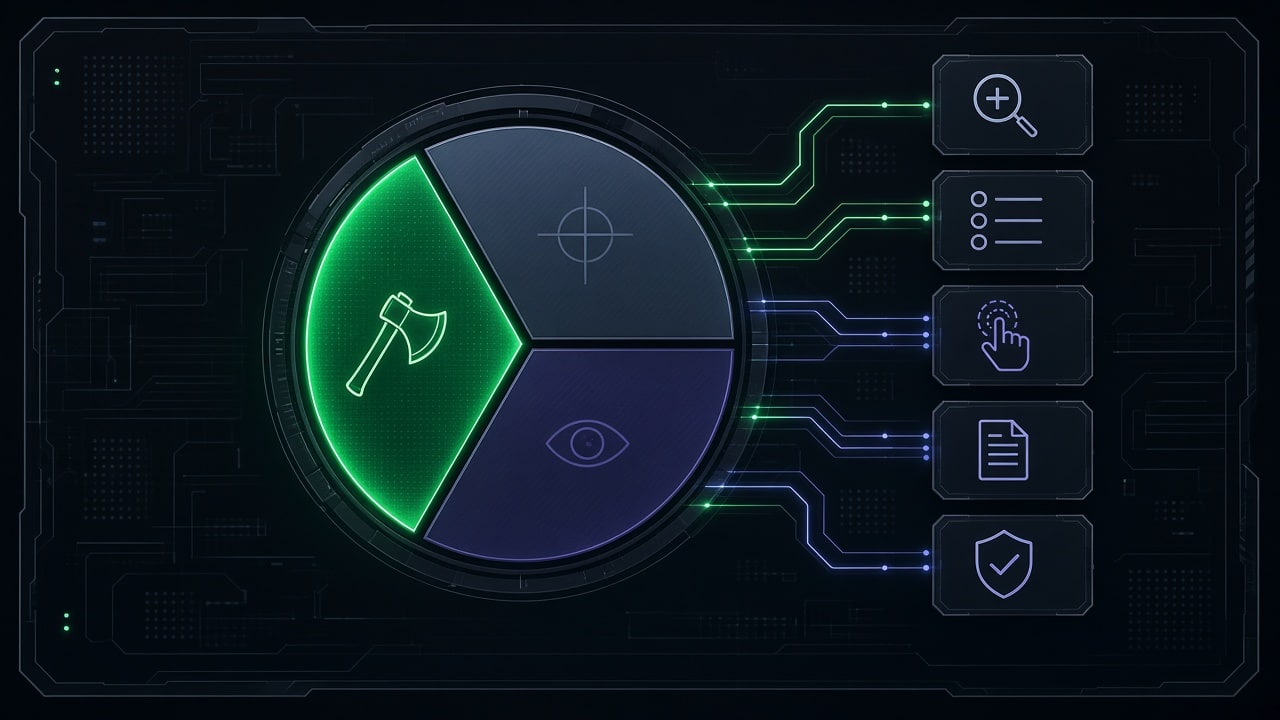
Automated accessibility testing in your continuous integration pipeline stops these regressions cold. But treating automated scans as a clean bill of health creates a false sense of security that will eventually burn you. The reality of automated accessibility testing comes down to a hard mathematical split: automated tools catch roughly one-third of accessibility criteria with high fidelity, while the remaining two-thirds demand deliberate human and manual verification.
This guide walks through the exact setup for testing modern single-page and server-rendered web applications with Playwright and axe-core. You will configure automated checks in CI, build fixtures that scan real interactive states instead of empty shells, handle false positives and dynamic widgets, and execute a disciplined manual protocol for the 58 success criteria that automated engines cannot evaluate.
What axe Catches and What It Misses: The Benchmark Numbers
To build a reliable automated testing strategy, you need to understand the structural boundaries of rule engines. Deque axe-core is the gold standard engine behind Chrome DevTools Lighthouse audits, Microsoft Accessibility Insights, and WAVE. Unlike naive linters, axe-core executes against the fully computed browser Document Object Model (DOM) and accessibility tree. It operates under a strict “zero false positives” philosophy: if axe-core flags a violation, you can be virtually certain an assistive technology user encounters a barrier.
That reliability comes at the expense of completeness.
Consider the hard numbers from the W3C WCAG 2.2 specification:
- Total Success Criteria: 87 criteria across Levels A, AA, and AAA.
- Criteria Mapped to Automated axe-core Rules: 29 criteria (33.3%).
- Criteria Without Automated Rules: 58 criteria (66.7%).
- Level AA Coverage: Out of 24 Level AA criteria required by most legal standards, only 7 criteria (29.2%) have direct automated rules.
- Failure Mode Visibility: In empirical benchmark testing across production design systems, automated scans catch approximately 60.9% of raw defect volume because trivial issues like low-contrast text and unlabelled icons repeat across hundreds of DOM nodes. However, automation misses 25 out of 64 distinct real-world accessibility failure modes entirely.
Here is what axe-core catches with surgical precision:
- Deterministic Structural Contracts: Missing
altattributes on images, orphan form controls missing<label>tags, duplicateidattributes that break screen reader references, and missing table headers. - Computed Color Contrast: Text foreground and solid background hex values that fail the 4.5:1 ratio for body text or 3:1 for large text.
- ARIA Grammar and Semantics: Non-existent ARIA roles, invalid
aria-*attributes, parent-child relationship mismatches (such as arole="tab"element outside arole="tablist"), and missing required ARIA attributes likearia-valuenowon custom sliders. - Touch Target Size Minimums: Under WCAG 2.2 Criterion 2.5.8, axe-core can compute bounding boxes to flag interactive elements smaller than 24 by 24 CSS pixels without sufficient spacing.
Here is what axe-core cannot evaluate:
- Semantic Quality and Intent: axe-core confirms whether an image has an
altattribute. It cannot determine ifalt="company_logo_v2_final.png"accurately conveys the visual content or if an image is purely decorative and should carryalt="". - Keyboard Focus Management: Automation cannot tell you if pressing the Tab key moves focus in an intuitive, logical sequence, or if focus gets silently dropped to the
<body>element when a dialog unmounts. - Screen Reader Pronunciation and Context: axe-core cannot verify that live region announcements make sense when a server returns a form validation error, or whether custom data visualizations render meaningful text equivalents.
- Visual Reflow and Zoom Truncation: Axe cannot detect when zooming your viewport to 400% causes an action button to get clipped behind a sticky footer navigation bar.
Automate the mechanical 33 percent so your engineers never waste time debating missing attributes in code reviews. Then apply human testing to the remaining 67 percent where usability lives. For a deeper breakdown of organizational audit workflows, read our guide on AI website accessibility auditing, and consult our web accessibility walkthrough for development teams to audit the full compliance scope.
Install and Configure @axe-core/playwright
Setting up axe-core with Playwright requires three development dependencies: Playwright’s test runner, the core axe engine, and the official wrapper published via the @axe-core/playwright package.
Install the packages via npm:
npm install --save-dev @playwright/test axe-core @axe-core/playwrightEnsure your project uses modern ESM or TypeScript. In your project root, verify your playwright.config.ts has headless browser configurations and a local web server configured so tests execute against your actual build output:
// playwright.config.ts
import { defineConfig, devices } from '@playwright/test';

export default defineConfig({
  testDir: './tests/a11y',
  fullyParallel: true,
  forbidOnly: !!process.env.CI,
  retries: process.env.CI ? 2 : 0,
  workers: process.env.CI ? 2 : undefined,
  reporter: [
    ['html', { outputFolder: 'playwright-report' }],
    ['json', { outputFile: 'test-results/a11y-results.json' }],
    ['list']
  ],
  use: {
    baseURL: process.env.BASE_URL || 'http://localhost:4173',
    trace: 'on-first-retry',
    screenshot: 'only-on-failure',
  },
  projects: [
    {
      name: 'chromium',
      use: { ...devices['Desktop Chrome'] },
    },
    {
      name: 'firefox',
      use: { ...devices['Desktop Firefox'] },
    },
    {
      name: 'webkit',
      use: { ...devices['Desktop Safari'] },
    },
  ],
  webServer: {
    command: 'npm run preview',
    port: 4173,
    reuseExistingServer: !process.env.CI,
    timeout: 120000,
  },
});
Notice the webServer block. Never run accessibility scans against a development hot-reloading server like vite or next dev. Development servers inject debug scripts, client overlays, and un-optimized stylesheets that alter the live DOM and generate false positives. Always run accessibility suites against production preview builds.
The First Page-Level Test
As documented in the Playwright accessibility testing guide, a basic page-level accessibility test loads a target route, initializes the AxeBuilder scanner attached to the Playwright page instance, scopes the scan to the desired WCAG tags, and asserts that the violations array is empty.
Create your first test file at tests/a11y/homepage.spec.ts:
// tests/a11y/homepage.spec.ts
import { test, expect } from '@playwright/test';
import { AxeBuilder } from '@axe-core/playwright';

test.describe('Marketing Pages Accessibility', () => {
  test('homepage passes WCAG 2.2 AA automated standards', async ({ page }) => {
    // Load target route and wait for DOM readiness
    await page.goto('/');
    await page.waitForLoadState('domcontentloaded');

    // Run axe scan with specific compliance tags
    const accessibilityScanResults = await new AxeBuilder({ page })
      .withTags(['wcag2a', 'wcag2aa', 'wcag21a', 'wcag21aa', 'wcag22aa'])
      .analyze();

    // Assert zero violations
    expect(accessibilityScanResults.violations).toEqual([]);
  });
});
Understanding axe-core Tag Scoping
By default, calling new AxeBuilder({ page }).analyze() runs every default rule in the library, including experimental rules and proprietary best practices. For deterministic compliance testing, explicitly target the WCAG standards relevant to your organization using .withTags():
wcag2a: Baseline WCAG 2.0 Level A criteria.wcag2aa: WCAG 2.0 Level AA criteria (the core foundation for ADA Title III).wcag21a&wcag21aa: WCAG 2.1 criteria, covering mobile reflow, orientation, and non-text contrast.wcag22aa: WCAG 2.2 criteria, covering target sizing and accessible authentication.
If your organization adheres to federal Section 508 guidelines or EN 301 549 European standards, you can append section508 or best-practice tags. For a granular breakdown of every success criterion, consult our reference on WCAG 2.2 success criteria explained.
Formatting Useful Failure Logs
When expect(violations).toEqual([]) fails, Playwright’s default assertion diff prints a massive JSON object that obscures the root cause. You can format custom violation output by mapping the violations into a concise diagnostic string:
// tests/a11y/utils/format-violations.ts
import type { Result } from 'axe-core';

export function formatAxeViolations(violations: Result[]): string {
  if (violations.length === 0) return '';

  return violations
    .map((violation, index) => {
      const targetNodes = violation.nodes
        .map((node) => `    - Selector: ${node.target.join(' ')}\n      HTML: ${node.html}`)
        .join('\n');

      return [
        `\n[Violation ${index + 1}/${violations.length}] ${violation.id} (${violation.impact?.toUpperCase()})`,
        `Description: ${violation.description}`,
        `Help URL: ${violation.helpUrl}`,
        `Offending Elements:\n${targetNodes}`,
      ].join('\n');
    })
    .join('\n' + '='.repeat(80) + '\n');
}
Now you can invoke this formatter directly inside your assertions:
const scanResults = await new AxeBuilder({ page })
  .withTags(['wcag2a', 'wcag2aa', 'wcag21a', 'wcag21aa', 'wcag22aa'])
  .analyze();

expect(
  scanResults.violations,
  formatAxeViolations(scanResults.violations)
).toEqual([]);
When CI fails, your terminal output highlights the exact CSS selector, the impact level, and the problematic markup snippet without scrolling through thousands of lines of AST metadata.
Fixtures for Real States: Modals, Menus, Forms, Errors, Loading
The single most common flaw in web accessibility test suites is scanning only static, pristine initial page loads.
When a page first loads, your navigation drawer is collapsed, your delete confirmation dialog is unmounted, your form error banners are hidden, and your asynchronous loading spinners have resolved. If axe-core scans only the initial DOM, hundreds of interactive components escape evaluation entirely.

To achieve genuine coverage, create reusable Playwright fixtures that drive the interface into specific operational states before triggering analysis.
Custom Test Fixture Architecture
We can extend Playwright’s base test runner with custom fixtures that inject a pre-configured makeAxeBuilder factory:
// tests/a11y/fixtures/axe-fixture.ts
import { test as base, expect, Page } from '@playwright/test';
import { AxeBuilder } from '@axe-core/playwright';
import { formatAxeViolations } from '../utils/format-violations';

type AxeFixture = {
  makeAxeBuilder: () => AxeBuilder;
  assertNoViolations: (builder: AxeBuilder) => Promise<void>;
};

export const test = base.extend<AxeFixture>({
  makeAxeBuilder: async ({ page }, use) => {
    const makeBuilder = () =>
      new AxeBuilder({ page })
        .withTags(['wcag2a', 'wcag2aa', 'wcag21a', 'wcag21aa', 'wcag22aa'])
        .exclude('iframe') // Exclude sandboxed third-party frames
        .disableRules(['color-contrast-enhanced']);

    await use(makeBuilder);
  },

  assertNoViolations: async ({}, use) => {
    const assertHelper = async (builder: AxeBuilder) => {
      const results = await builder.analyze();
      expect(
        results.violations,
        formatAxeViolations(results.violations)
      ).toEqual([]);
    };
    await use(assertHelper);
  },
});

export { expect };
Testing Dynamic State 1: Open Modals and Drawers
When testing a modal, wait for the opening transition to complete, assert that focus has moved inside the modal container, and scope axe-core specifically to the modal element using .include():
// tests/a11y/interactive-states.spec.ts
import { test, expect } from './fixtures/axe-fixture';

test.describe('Dynamic UI State Scans', () => {
  test('modal dialog maintains accessibility when active', async ({
    page,
    makeAxeBuilder,
    assertNoViolations,
  }) => {
    await page.goto('/pricing/');

    // Trigger modal opening
    const triggerButton = page.getByRole('button', { name: /request enterprise quote/i });
    await triggerButton.click();

    // Wait for modal surface to become visible
    const modal = page.getByRole('dialog', { name: /enterprise quote/i });
    await expect(modal).toBeVisible();

    // Verify initial focus landed inside the dialog
    await expect(modal.getByRole('heading', { level: 2 })).toBeVisible();

    // Scope scan specifically to the modal element
    const builder = makeAxeBuilder().include('[role="dialog"]');
    await assertNoViolations(builder);
  });
});
Testing Dynamic State 2: Form Validation Errors
Form fields often pass contrast and labeling tests in their idle state, but fail when validation fires. Dynamic error messages might display low-contrast red text (#FF6B6B on a white background), or omit the aria-describedby linkage that screen readers require to announce why the input was rejected.
test('checkout form displays accessible error states upon invalid submit', async ({
  page,
  makeAxeBuilder,
  assertNoViolations,
}) => {
  await page.goto('/checkout/');

  // Submit empty form to trigger validation errors
  const submitButton = page.getByRole('button', { name: /complete payment/i });
  await submitButton.click();

  // Wait for error messages to attach to DOM
  const emailInput = page.getByRole('textbox', { name: /email address/i });
  await expect(page.locator('#email-error')).toBeVisible();

  // Verify programmatic linkage between input and error text
  await expect(emailInput).toHaveAttribute('aria-invalid', 'true');
  await expect(emailInput).toHaveAttribute('aria-describedby', 'email-error');

  // Run scan across the entire active form
  const builder = makeAxeBuilder().include('#checkout-form');
  await assertNoViolations(builder);
});
Testing Dynamic State 3: Asynchronous Loading and Empty States
Verify that skeleton screens, spinner overlays, and empty data lists maintain structural accessibility. Common bugs in loading states include aria-busy="true" attributes that never clear, or spinners missing accessible labels like aria-label="Loading account telemetry":
test('dashboard empty state meets compliance standards', async ({
  page,
  makeAxeBuilder,
  assertNoViolations,
}) => {
  // Mock API to return empty dataset
  await page.route('/api/v1/telemetry', async (route) => {
    await route.fulfill({ status: 200, contentType: 'application/json', body: '[]' });
  });

  await page.goto('/dashboard/analytics/');
  await expect(page.getByText(/no data recorded for this billing cycle/i)).toBeVisible();

  const builder = makeAxeBuilder().include('main');
  await assertNoViolations(builder);
});
Authenticated and Multi-Page Flows
Modern web applications guard their most critical functionality behind authentication. Scanning only public marketing pages leaves dashboards, billing portals, and account settings unprotected.
Playwright provides a high-performance authentication mechanism called storageState. Instead of logging in through UI forms in every individual test, you perform the login sequence once during setup, serialize the browser cookies and local storage tokens to disk, and inject those credentials across your accessibility suite.
Step 1: Create an Authentication Setup Script
Create an auth setup test that runs once before your accessibility test project:
// tests/a11y/setup/auth.setup.ts
import { test as setup, expect } from '@playwright/test';
import path from 'path';

const authFile = path.join(__dirname, '../../../playwright/.auth/user.json');

setup('authenticate test user', async ({ page }) => {
  await page.goto('/login/');
  await page.getByLabel(/email address/i).fill(process.env.TEST_USER_EMAIL || '[email protected]');
  await page.getByLabel(/password/i).fill(process.env.TEST_USER_PASSWORD || 'SecretPassword123!');
  await page.getByRole('button', { name: /sign in/i }).click();

  // Wait for redirect to dashboard
  await page.waitForURL('/dashboard/');
  await expect(page.getByRole('heading', { name: /account overview/i })).toBeVisible();

  // Save session state to disk
  await page.context().storageState({ path: authFile });
});
Step 2: Configure the Setup Project in Playwright Config
Register the setup file in playwright.config.ts and declare dependencies:
// playwright.config.ts excerpt
export default defineConfig({
  projects: [
    // Project 1: Authenticate
    {
      name: 'setup',
      testMatch: /auth\.setup\.ts/,
    },
    // Project 2: Scan authenticated portal
    {
      name: 'authenticated-a11y',
      dependencies: ['setup'],
      use: {
        ...devices['Desktop Chrome'],
        storageState: 'playwright/.auth/user.json',
      },
      testMatch: /authenticated\/.*\.spec\.ts/,
    },
  ],
});
Step 3: Scan Authenticated Multi-Page Workflows
Now write tests for authenticated routes without repeating login clicks:
// tests/a11y/authenticated/billing-portal.spec.ts
import { test, expect } from '../fixtures/axe-fixture';

const authenticatedRoutes = [
  '/dashboard/',
  '/dashboard/projects/',
  '/dashboard/billing/',
  '/dashboard/security-keys/',
];

test.describe('Authenticated Dashboard Accessibility', () => {
  for (const route of authenticatedRoutes) {
    test(`route ${route} meets WCAG AA criteria`, async ({
      page,
      makeAxeBuilder,
      assertNoViolations,
    }) => {
      await page.goto(route);
      await page.waitForLoadState('networkidle');

      // Verify page title exists for screen reader orientation (WCAG 2.4.2)
      await expect(page).not.toHaveTitle('');

      const builder = makeAxeBuilder();
      await assertNoViolations(builder);
    });
  }
});
GitHub Actions CI, Failing Builds, and Saved Reports
Accessibility scans provide value only when they run automatically on every pull request and reliably block regressions before merge.

Here is a production-grade GitHub Actions workflow file that builds the application, provisions Playwright with required browser binaries, runs the accessibility suite in parallel, and uploads test artifacts.
Save this file at .github/workflows/accessibility-gate.yml:
name: Accessibility CI Gate

on:
  push:
    branches: [main]
  pull_request:
    branches: [main]

concurrency:
  group: a11y-${{ github.ref }}
  cancel-in-progress: true

jobs:
  axe-audit:
    name: Playwright axe-core Verification
    runs-on: ubuntu-latest
    timeout-minutes: 15

    steps:
      - name: Checkout Source Code
        uses: actions/checkout@v4

      - name: Setup Node.js Runtime
        uses: actions/setup-node@v4
        with:
          node-version: 22
          cache: 'npm'

      - name: Install Dependencies
        run: npm ci

      - name: Cache Playwright Browsers
        uses: actions/cache@v4
        id: playwright-cache
        with:
          path: ~/.cache/ms-playwright
          key: ${{ runner.os }}-playwright-${{ hashFiles('**/package-lock.json') }}

      - name: Install Playwright Chromium Dependencies
        if: steps.playwright-cache.outputs.cache-hit != 'true'
        run: npx playwright install --with-deps chromium

      - name: Install Chromium System Dependencies
        if: steps.playwright-cache.outputs.cache-hit == 'true'
        run: npx playwright install-deps chromium

      - name: Build Production Static Assets
        run: npm run build

      - name: Execute Accessibility Test Suite
        env:
          CI: true
          TEST_USER_EMAIL: ${{ secrets.TEST_USER_EMAIL }}
          TEST_USER_PASSWORD: ${{ secrets.TEST_USER_PASSWORD }}
        run: npx playwright test --project=chromium

      - name: Upload Playwright Failure Reports
        if: always()
        uses: actions/upload-artifact@v4
        with:
          name: a11y-test-results
          path: |
            playwright-report/
            test-results/
          retention-days: 14
Why This Workflow Design Matters
- Chromium-Only for CI Speed: While cross-browser manual testing matters, axe-core evaluates DOM trees identically in Chromium, WebKit, and Gecko for 99% of structural rules. Limiting automated CI scans to Chromium cuts runner times by two-thirds without reducing defect detection.
- Artifact Retention: The
upload-artifactstep preserves full HTML trace files and JSON logs for 14 days. When a pull request fails, the author downloads the interactive report without needing to recreate the scan locally. - Cancel In-Progress: If a developer pushes three commits in rapid succession,
cancel-in-progressaborts redundant runs, preserving runner minutes.
Cutting False Positives and Flaky Tests
Flaky tests destroy developer trust. If an accessibility check randomly fails a pull request because a font took 50 milliseconds longer to fetch from a CDN, engineers will bypass or disable the test.
Here are the four techniques to eliminate flakiness in @axe-core/playwright.
1. Wait for Web Fonts and CSS Layout
Axe-core calculates color contrast by analyzing the computed bounding box of rendered text against the background beneath it. If a scan executes while custom web fonts are downloading, the browser renders fallback fonts with different metrics. This can shift text over background images or cause contrast calculations to fail intermittently.
Add a font-loading guard in your test fixtures before executing analyze():
// Wait for document fonts to finish loading
await page.evaluate(() => document.fonts.ready);
2. Disable CSS Animations and Transitions
Sliding menus, fading tooltips, and modal backdrop transitions cause contrast and visibility checks to evaluate mid-animation, resulting in intermittent failures:
// tests/a11y/utils/disable-animations.ts
import { Page } from '@playwright/test';

export async function disableAnimations(page: Page): Promise<void> {
  await page.addStyleTag({
    content: `
      *, *::before, *::after {
        transition-property: none !important;
        transform: none !important;
        animation: none !important;
        transition-duration: 0s !important;
      }
    `,
  });
}
Invoke await disableAnimations(page) immediately before running makeAxeBuilder().analyze().
3. Exclude Third-Party Embeds and Sandboxed Widgets
Third-party chat bubbles (Intercom, Crisp), payment forms (Stripe Elements), and cookie consent banners (OneTrust) frequently violate WCAG standards in ways your development team cannot alter. If third-party code fails your CI gate, engineers become cynical about accessibility.
Exclude external wrappers cleanly using .exclude():
const scanResults = await new AxeBuilder({ page })
  .withTags(['wcag2a', 'wcag2aa'])
  .exclude('#intercom-container')
  .exclude('#hubspot-messages-iframe-container')
  .exclude('.stripe-elements-container')
  .analyze();
4. Implement a 90-Day Ratchet Allowlist
When introducing accessibility testing to an existing codebase, the first scan often uncovers dozens of violations. Halting all product development to fix every historical issue is rarely realistic. Deleting or weakening rules, however, allows new bugs to enter unnoticed.
The correct architectural solution is a structured allowlist ratchet with strict expiration dates:
// tests/a11y/utils/allowlist.ts
interface AllowedViolation {
  ruleId: string;
  selector: string;
  ticket: string;
  expiresOn: string; // ISO date YYYY-MM-DD
}

export const activeAllowlist: AllowedViolation[] = [
  {
    ruleId: 'color-contrast',
    selector: '.legacy-chart-legend > span',
    ticket: 'JIRA-1422',
    expiresOn: '2026-12-31',
  },
  {
    ruleId: 'target-size',
    selector: '.mobile-footer-nav a',
    ticket: 'JIRA-1589',
    expiresOn: '2026-11-30',
  },
];

export function filterAllowedViolations(violations: any[]): any[] {
  const today = new Date().toISOString().split('T')[0];

  // Enforce allowlist expiration dates
  for (const item of activeAllowlist) {
    if (item.expiresOn < today) {
      throw new Error(
        `Allowlist entry for "${item.ruleId}" on "${item.selector}" expired on ${item.expiresOn} (${item.ticket}). Fix the underlying issue.`
      );
    }
  }

  return violations.filter((violation) => {
    return !violation.nodes.some((node: any) => {
      return activeAllowlist.some((allowed) => {
        return (
          allowed.ruleId === violation.id &&
          node.target.some((targetSelector: string) => targetSelector.includes(allowed.selector))
        );
      });
    });
  });
}
This ratchet ensures that known technical debt has an assigned ticket and an inflexible expiration date. If an engineer attempts to merge new violations, CI fails immediately.
The Manual Checks for the Remaining Criteria: Keyboard, Focus Order, Screen Reader, Zoom, Motion
Passing automated CI scans satisfies Criterion 4.1.1 (Parsing) and pieces of structural syntax. It does not mean your product is accessible.
The 58 WCAG criteria that axe-core cannot evaluate require deliberate, repeatable manual verification. Schedule these five manual protocols for every core user workflow before major releases.
1. Keyboard-Only Navigation and Focus Visibility (WCAG 2.1.1, 2.1.2, 2.4.7)
Put your mouse aside and complete an end-to-end user conversion using only the keyboard:
- Tab and Shift+Tab: Every interactive element (buttons, links, form fields, tab triggers) must be reachable via the Tab key. Custom clickable
<div>elements fail this immediately unless refactored to native<button>tags or giventabindex="0"and keyboard event listeners. - Visible Focus Indicator: As you tab through the page, a crisp, high-contrast focus ring must follow your movement. Never permit CSS like
outline: nonewithout providing an equivalent custom focus ring (such asfocus-visible:ring-2 focus-visible:ring-indigo-500). - No Keyboard Traps: Focus must never enter a component (such as an embedded widget or media player) that cannot be exited using standard arrow keys, Escape, or Tab.
- Focus Restoration: When closing a modal dialog or flyout navigation drawer using the Escape key, focus must return directly to the trigger element that opened it. If focus drops to the top of the
<body>element, keyboard users must tab through the entire header again.
2. Meaningful Reading and Focus Order (WCAG 1.3.2, 2.4.3)
Visual placement in CSS does not always match DOM ordering. Using CSS flexbox order properties or grid-template-areas can reorder components visually while leaving the underlying DOM sequence unchanged:
- Tab through dynamic card grids or two-column forms. Does the focus jump match the logical reading order of a sighted user (left-to-right, top-to-bottom)?
- In single-page app route transitions, does your application move focus to the new page heading (
<h1>), or does it leave focus stranded at the bottom of the previous layout?
3. Screen Reader Verification (WCAG 1.3.1, 4.1.2, 4.1.3)
Test your primary conversion paths using native screen readers:
- macOS / iOS: VoiceOver (Command + F5).
- Windows: NVDA (Free, open-source) or JAWS.
- Android: TalkBack.
Listen to how your components are announced:
- Does an icon-only button announce “Close dialog, button” or does it announce “Button” with no context?
- When a user submits an invalid form, does the screen reader immediately announce an error summary via an
aria-live="polite"region, or does the user hear complete silence? - Are expandable accordions announcing their expanded or collapsed status via
aria-expanded="true|false"?
4. 400% Zoom and Viewport Reflow (WCAG 1.4.10)
WCAG 2.1 Criterion 1.4.10 requires that content reflow without loss of information or functionality, and without requiring scrolling in two dimensions (horizontal and vertical simultaneously), on a 1280-pixel display zoomed to 400% (equivalent to a 320-pixel viewport):
- Open Chrome or Firefox, set the browser window to 1280 pixels wide, and press
Ctrl + Plus(orCmd + Plus) until zoom reaches 400%. - Verify that sticky headers do not consume more than half the vertical screen space.
- Verify that modal dialogs remain scrollable and do not hide action buttons below the bottom viewport cutoff.
- Verify that tabular data reflows into responsive card layouts or provides single-direction scrolling.
5. Reduced Motion Preferences (WCAG 2.3.3)
Users with vestibular disorders experience dizziness or nausea from large parallax scrolls, rotating banners, and zooming transitions:
- Enable “Reduce Motion” in your operating system preferences (macOS: System Settings > Accessibility > Display > Reduce Motion).
- Verify that your application respects the CSS
@media (prefers-reduced-motion: reduce)media query by replacing smooth layout shifts and complex animations with instant transitions or subtle fades.
Third-party overlays claim to solve these complex manual issues with automated JavaScript widgets, but real-world testing proves otherwise. Read our breakdown on web accessibility overlay lawsuits to understand why automated overlays fail legal and technical scrutiny.
A Copyable Test Matrix
Use this unified matrix to determine which verification method handles each major accessibility category across your engineering lifecycle:
| Success Criterion | WCAG Level | Testing Method | Verification Frequency | Responsible Owner |
|---|---|---|---|---|
| 1.1.1 Non-text Content (Syntax) | A | Playwright + axe (image-alt) | Every Pull Request | Automated CI |
| 1.1.1 Non-text Content (Quality) | A | Manual Screen Reader / Visual Pass | Pre-Release Sprint | Product Designer |
| 1.3.1 Info and Relationships | A | axe (aria-*, headings) + Manual | PR + Manual Audit | Frontend Engineer |
| 1.3.2 Meaningful Sequence | A | Manual Keyboard Tab Sequence | Design QA | QA Engineer |
| 1.4.3 Contrast (Minimum) | AA | Playwright + axe (color-contrast) | Every Pull Request | Automated CI |
| 1.4.10 Reflow (400% Zoom) | AA | Manual Browser Viewport Resizing | Pre-Release Sprint | Frontend Engineer |
| 1.4.11 Non-text Contrast | AA | Manual Color Dropper Inspection | Design System Review | UI Designer |
| 2.1.1 Keyboard | A | Manual Keyboard-Only Pass | Every Pull Request | Frontend Engineer |
| 2.1.2 No Keyboard Trap | A | Manual Keyboard-Only Pass | Every Pull Request | QA Engineer |
| 2.4.3 Focus Order | A | Manual Keyboard Inspection | Component Sign-off | Frontend Engineer |
| 2.4.7 Focus Visible | AA | Manual Keyboard Inspection | Every Pull Request | Frontend Engineer |
| 2.5.8 Target Size (Minimum) | AA | Playwright + axe (target-size) | Every Pull Request | Automated CI |
| 3.3.1 Error Identification | A | Dynamic Form Fixtures in Playwright | Every Pull Request | QA Engineer |
| 4.1.2 Name, Role, Value | A | Playwright + axe + Screen Reader | PR + Manual Audit | Full Stack Engineer |
Conclusion
Building accessible web applications is not a binary checklist completed before a product launch. It is an engineering discipline that requires defending boundaries on every single commit.
Automated scanning with Playwright and axe-core is the highest-return investment your team can make. It takes less than thirty minutes to configure, runs in under two seconds in your CI pipeline, and permanently eliminates the mechanical errors that clutter pull requests and trigger regulatory scrutiny.
Commit the @axe-core/playwright test runner to your repository this week. Scope your assertions to WCAG 2.2 AA. Establish an allowlist ratchet to isolate existing legacy debt, and configure dynamic fixtures to test modals, forms, and authenticated portals in real states. Once your automated gate is green, run manual keyboard and screen reader passes on your core user paths.
If you need enterprise-grade continuous scanning across thousands of public and authenticated routes without configuring local CI pipelines, see vComplianceScanner to monitor your production compliance score in real time.